uWebChat Voice reporting & uWallBoard — Statistics and live overview
View call statistics, reports and the real-time uWallBoard in uWebChat Voice. Filter by date, agent and queue, analyze call flows.
uWebChat Voice offers comprehensive reporting and a live wallboard for monitoring your telephony.
Reporting
Click Reporting in the left menu for statistics about agents, queues and calls. You can filter by specific dates, weeks, months, years and queues.
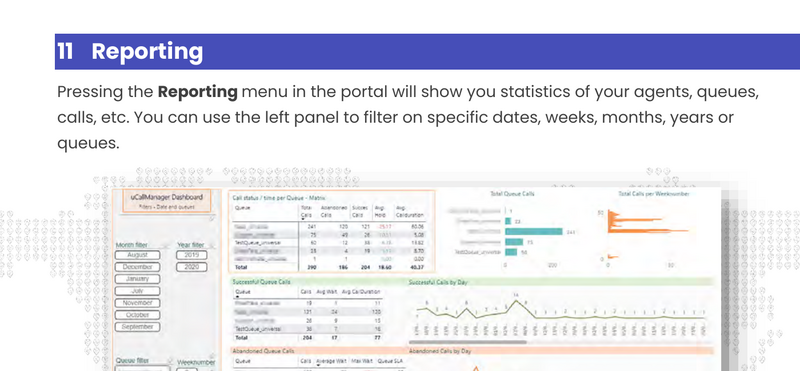
Reporting dashboard
Call Summary
Click the Call Summary button on the bottom right for detailed information about individual calls. You can filter by date range, agent, queue or Caller ID.
Advanced call flow reporting
Right-click a call in the Call Summary and select Drill through > Show call stats for a detailed analysis.
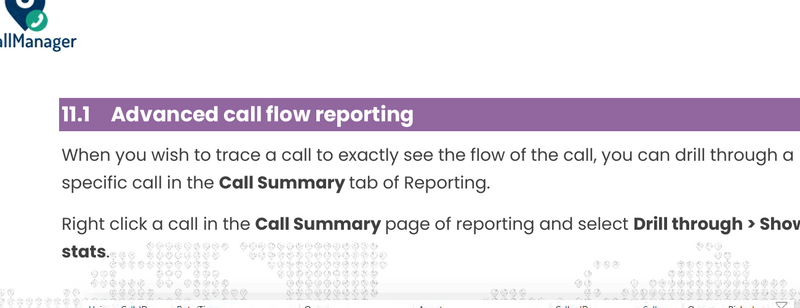
Call Summary drill-through
In this view you can see:
- Duration of call: — Call duration and hold time
- Results: — The exact call flow with all actions taken by uWebChat Voice
- Filter: — Filter by queues, agents, date and time
- Presence: — The presence of agents at the time of the call
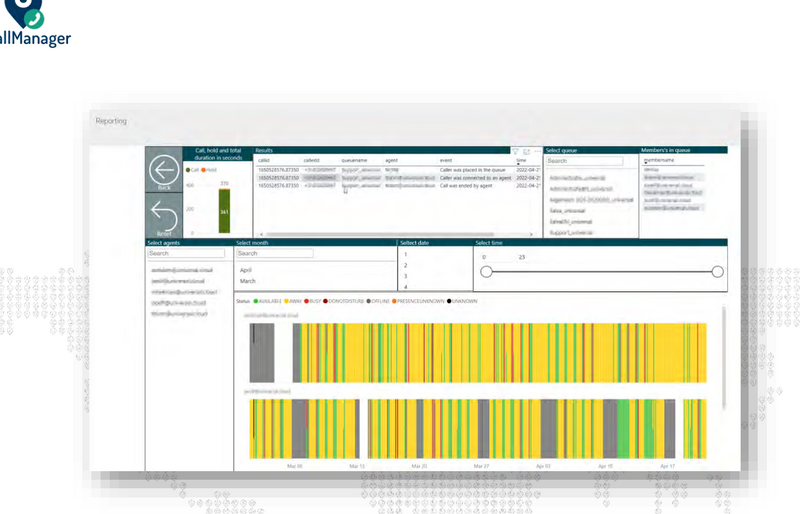
Detailed call flow reporting
uWallBoard
The uWallBoard is a live wallboard for monitoring queues and calls in real-time. Access it via the uWallBoard link in the portal menu.
uWallBoard overview
Features
- Real-time overview of all queues
- Number of agents per queue (total and available)
- Incoming calls with waiting time and caller information
- Active calls with agent information and call duration
Active call on the wallboard
When a queue is called and an agent picks up, the wallboard shows:
- The phone number of the caller
- The status of the call (on hold or in call)
- The name of the agent handling the call
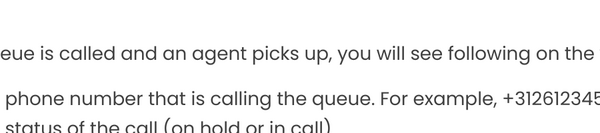
uWallBoard active call
Show/hide queue on wallboard
Via the queue settings you can control which queues are displayed on the uWallBoard. Go to the queue, click Edit Queue and set Show on Wallboard to Yes or No.
This is useful when you have a complex call structure and only want to monitor specific queues.
Chat With Us
Get instant help from our support team
News & Insights
The new uWebChat Voice portal is live
2026-03-31
Laptop prices are rising fast: order now before it's too late
2026-03-16
Microsoft 365 E7: the new all-in-one suite for AI and productivity
2026-03-12
Related Articles
Need More Help?
Can't find what you're looking for? Our support team is ready to assist.
Submit a Support Ticket