uWebChat Voice hunting & presence — Calling strategies and availability
Learn how hunting and Microsoft Teams presence work in uWebChat Voice. Configure agents, set priorities and manage availability.
When a queue receives a call, uWebChat Voice searches for an available agent based on the configured calling strategy. This process is called "hunting". The Microsoft Teams presence (availability status) determines whether an agent can be called.
Microsoft Teams presence
Agent presence is fetched via the Graph API. Without a Graph API connection, presence will not function for MS Teams users.
When an agent is set to Always Available, the Teams presence is ignored and the agent will always be hunted.
Presence and hunting
| Presence | Will be hunted? |
|---|---|
| Available | Yes |
| Away | Yes/No (configurable per queue) |
| Be Right Back | No |
| Busy | No |
| Do not Disturb | No |
| Offline | No |
| In a Call | No |
| In a Meeting | No (unless presence is manually changed) |
| Presenting | No |
Notes
- Hunt Agents when Away: Configurable per queue. Useful when users frequently lock their device (Teams automatically sets status to Away)
- Be Right Back: Additional configuration by Universal Cloud may be required
- In a Meeting: An agent can override this by manually changing their presence in Teams
Agents overview
Go to the Agents menu for an overview of all agents.
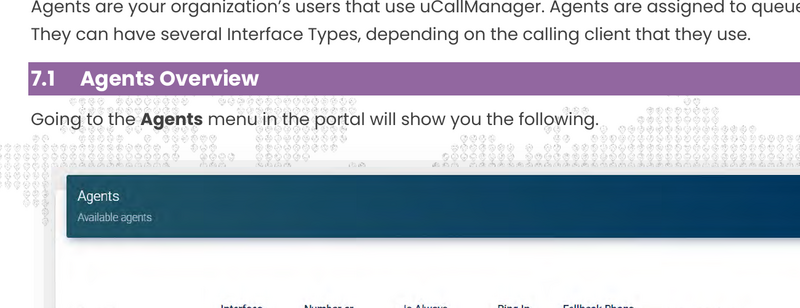
Agents overview
Per agent you can see:
- Agent: — The agent name (format: email@domain.com)
- Interface Type: — MS Teams or another telephony system
- Number or Extension: — The PSTN number or extension (format: countrycode+areacode+number, e.g. 31261234567)
- Is Always Available: — When True, presence is ignored
- Ring In Use: — Internal setting, keep on true
- Fallback Phone Number: — Number called when the primary number is not answered
- Office 365 User: — The linked Microsoft 365 user (required for presence and Shifts)
Create and edit an agent
Press the plus sign (+) to create a new agent. Use the pencil icon to edit an existing agent.
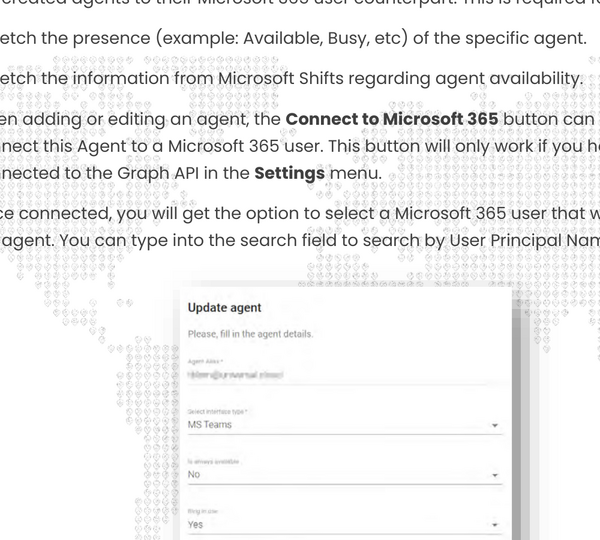
Edit agent
Connect to Microsoft 365
When adding or editing an agent, the Connect to Microsoft 365 button can be used to link the agent to a Microsoft 365 user. This only works if you have previously connected to the Graph API.
You can search by User Principal Name to find the correct user.
Chat With Us
Get instant help from our support team
News & Insights
The new uWebChat Voice portal is live
2026-03-31
Laptop prices are rising fast: order now before it's too late
2026-03-16
Microsoft 365 E7: the new all-in-one suite for AI and productivity
2026-03-12
Related Articles
Need More Help?
Can't find what you're looking for? Our support team is ready to assist.
Submit a Support Ticket