uWebChat Voice call queues — Create, business hours and Shifts
Configure call queues in uWebChat Voice: create, edit, set business hours, assign holidays, add agents and Microsoft Shifts integration.
A Call Queue is a phone number with multiple agents assigned to it. Calls are distributed among available agents based on your configuration.
Call queues overview
In the Call Queues menu you can find an overview of all your queues. Press the plus sign (+) to create a new queue, or click an existing queue to edit it.
Each queue shows the following information:
- Name: — Name of the queue
- Type: — Default Queue or Shifts Queue
- Phone Number: — The phone number associated with the queue
- Max Members: — Maximum number of agents
- Next Queue: — Optional: forward calls when unanswered
- Next Queue (Outside of Business Hours): — Optional: forward calls outside business hours
Create a queue
Press the plus sign (+) to create a new queue. The following fields are required:
- Queue Name: — The name of the queue
- Query Type: — Default Queue or Shifts Queue
- Max Member: — Maximum number of agents
- Phone Number: — Select a phone number from your subscription
- Strategy: — The calling strategy (see table below)
- Show on Wallboard: — Display on the uWallBoard
Calling strategies
| Strategy | Explanation |
|---|---|
| Ring All | Calls all agents simultaneously until someone picks up |
| Least recent | Calls the agent who least recently completed a call |
| Fewest Calls | Calls the agent with the fewest completed calls |
| Random | Calls a random agent |
| Round Robin Memory | Remembers the last call and prevents the same agent being called twice in a row |
| Wait Random | Calls a random agent |
| Round Robin Ordered | Follows a specific order based on priority assigned to agents |
Edit a queue — Settings
Select a queue to view and edit its settings. Press Edit Queue to start making changes.
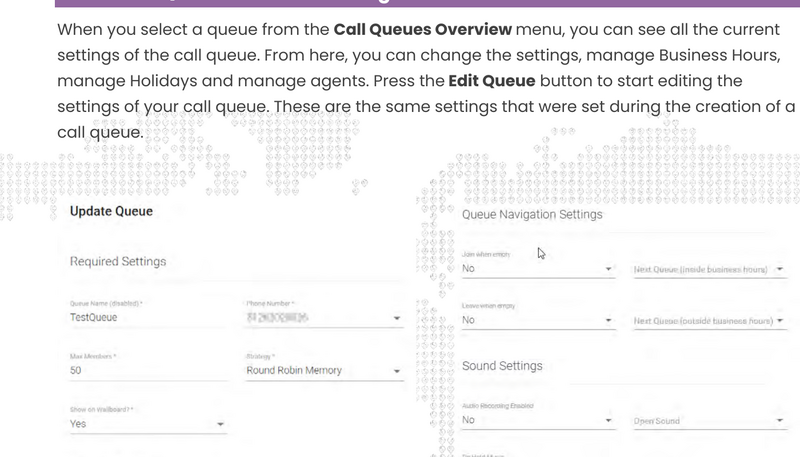
Queue settings
Hunting settings
- Timeout (seconds): — Number of seconds before forwarding to the next agent
- Retry (seconds): — Wait time before re-offering a call
- Absolute Timeout (seconds): — Maximum time a call can remain in the queue
- Service Level (seconds): — Target time for reporting
- Hunt Agents when Away: — Also hunt agents with Away status
Navigation settings
- Join When Empty: — Behavior when the queue has no agents
- Leave When Empty: — Behavior when no agents are available
- Next Queue (Inside Business Hours): — Forward on timeout
- Next Queue (Outside Business Hours): — Forward outside business hours
Sound settings
- Enable Audio Recording: — Enable or disable call recording
- On Hold Music: — Music on hold (contact Universal Cloud to change)
- Open Sound: — Welcome message when calling the queue
- Close Sound: — Message outside business hours
Edit a queue — Business Hours
Set business hours from the Business Hours menu. Press the plus sign (+) to add time slots.
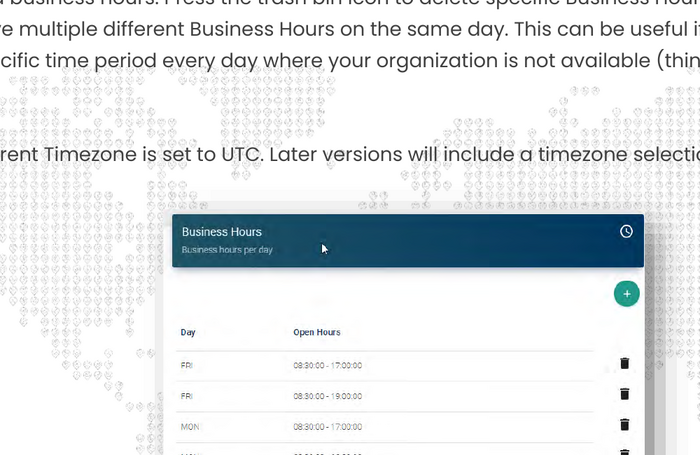
Business Hours
You can set multiple time slots per day. This is useful if your organization is closed during lunchtime, for example.
Edit a queue — Holidays
Assign holidays to your queue from the Holidays menu. Press the plus sign (+) to add a previously created holiday.
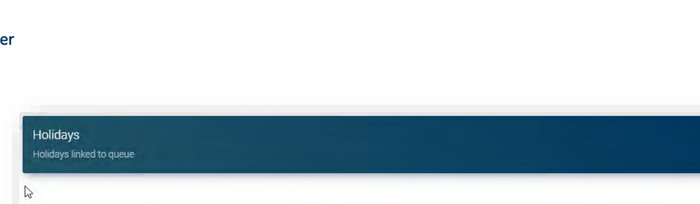
Holidays linked to queue
Note: you cannot create holidays from within the queue. Use the separate Holidays menu for this.
Edit a queue — Agents
Assign agents from the Agents menu within the queue.
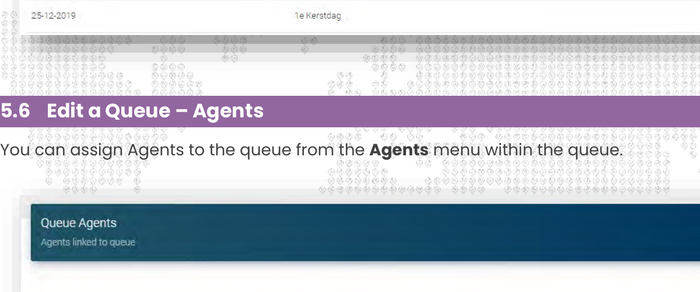
Queue agents
Press the plus sign (+) to add an existing agent. Set the priority (1-100, lower = higher priority).
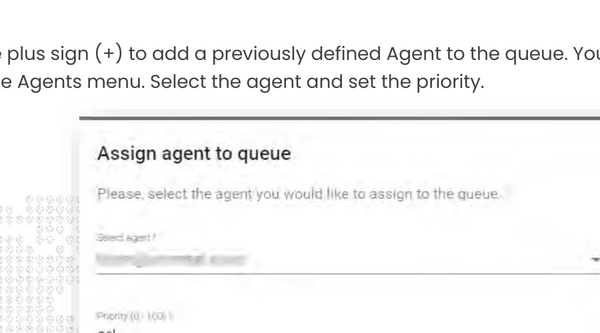
Assign agent
Microsoft Shifts queues
You can also link queues to Microsoft Shifts. Agents are then automatically assigned based on their Shifts schedule.
Shifts requirements
- Users must have Teams Administrator or Global Admin role
- All users in the Shift must be part of the same Microsoft 365 group
- Only group owners can manage Shifts
Create a Shifts queue
Create a queue and set the Queue Type to Shifts Queue. Select the Connected Team linked to your Microsoft 365 Shifts.
Create Shifts queue
Shifts limitations
- Default Queues and Shifts Queues cannot be converted between each other
- Agents are synchronized with Shifts hourly
- Time frames from Microsoft Shifts are not transferred — agents are available the entire day. Use Business Hours in the portal to restrict this
Chat With Us
Get instant help from our support team
News & Insights
The new uWebChat Voice portal is live
2026-03-31
Laptop prices are rising fast: order now before it's too late
2026-03-16
Microsoft 365 E7: the new all-in-one suite for AI and productivity
2026-03-12
Related Articles
Need More Help?
Can't find what you're looking for? Our support team is ready to assist.
Submit a Support Ticket