uWebChat Voice audio library & call recording
Manage audio files and call recordings in uWebChat Voice. Upload audio for IVR and queues, listen to recordings and view requirements.
uWebChat Voice offers a comprehensive audio library for managing audio files, and optional call recording for listening back to conversations.
Audio Library
The Audio Library provides an overview of all uploaded audio files. These files can be attached to queues (welcome message, hold music) and IVR menus (prompts).
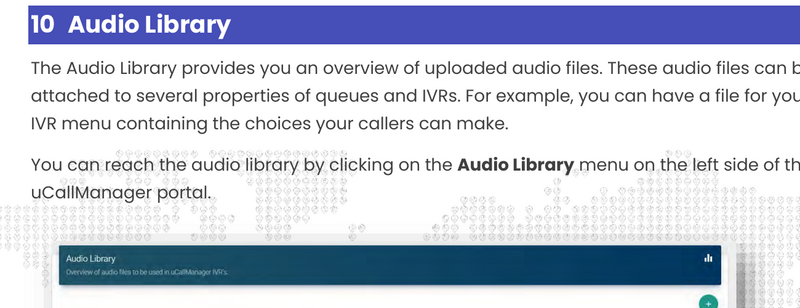
Audio Library overview
Upload audio
Click the plus sign (+) to upload a new audio file.
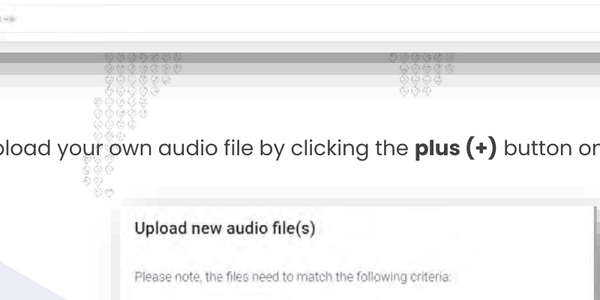
Upload audio
Audio requirements
Audio files must meet the following specifications:
- Format: .WAV
- Audio stream: Mono
- Bitrate: 8-Bit (8000 Hz)
- Maximum file size: 15 MB
Other formats are not supported.
Call Recording
When call recording is enabled on a queue, all calls are automatically recorded. You can listen to recordings from the Recordings menu.
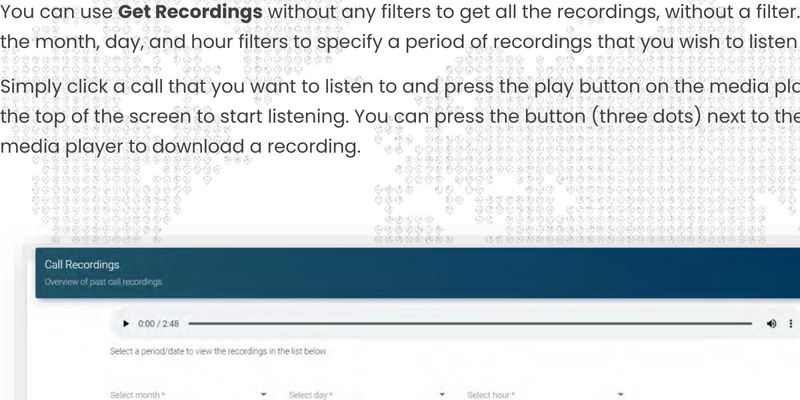
Call recordings
Search and listen to recordings
- Use Get Recordings to retrieve all recordings (without filters)
- Filter by month, day and hour for a specific period
- Click a call to play it using the media player at the top of the screen
- Use the three-dot menu next to the media player to download a recording
Displayed information
- Call To: — The called number
- Date & Time: — Date and time of the call
- Duration: — Duration of the call
Enable call recording
Call recording is enabled per queue via the queue settings. Go to the queue, click Edit Queue and set Enable Audio Recording to Yes.
Chat With Us
Get instant help from our support team
News & Insights
The new uWebChat Voice portal is live
2026-03-31
Laptop prices are rising fast: order now before it's too late
2026-03-16
Microsoft 365 E7: the new all-in-one suite for AI and productivity
2026-03-12
Related Articles
Need More Help?
Can't find what you're looking for? Our support team is ready to assist.
Submit a Support Ticket