uWallboard — Signing in and monitoring queues (guide for invited users)
Short guide for users who received an invitation to uWallboard. Learn how to sign in with your Universal account, set up MFA and select the queues you want to monitor.
Welcome to uWallboard — the live monitoring dashboard for uWebChat Voice. With uWallboard you can follow queues in real time and receive notifications when situations arise that need attention (for example a queue with no available agents).
You have been invited to use the uWallboard. This article walks you through the setup.
> Personal login & settings — Every user has their own personal login. That means you decide which queues you follow and which notifications you receive. Your settings are stored in your browser session: if you sign in again the next day (same browser), your preferences are still there.
1. Sign in with your Universal portal account
Open https://wallboard.uwebchat.com in your browser.
You sign in with your Universal portal account. The invitation for this account arrives by email from Universal. Through the link in that email you choose your own password. From then on you can use that same account wherever a Universal login is required — including uWallboard.

Sign in to the uWebChat Voice portal with your Universal ID
2. Set up MFA (multi-factor authentication)
MFA is mandatory for uWallboard. The first time you sign in you are asked to link an MFA method.
You can choose your own authenticator app. Popular options:
- Microsoft Authenticator: — free in the [Apple App Store](https://apps.apple.com/app/microsoft-authenticator/id983156458) or [Google Play Store](https://play.google.com/store/apps/details?id=com.azure.authenticator)
- Google Authenticator: — also free in both stores
- Any other TOTP-compatible app you already use
After installing, scan the QR code shown in the portal and enter the one-time code. Store the recovery code somewhere safe — you will need it if you ever switch to a new phone.
3. Select queues and configure monitoring
Once signed in you land on the uWallboard. Click Configuration to choose which queues you want to follow.

uWallboard configuration — selecting queues
In the configuration panel:
- Select the queues you want to monitor.
- Adjust the display name to something meaningful to you personally. That way you recognize each queue at a glance.
- Click Update queue selection to save.
You can change this configuration at any time. You can also drag the cards to arrange them on your screen in the order you prefer.
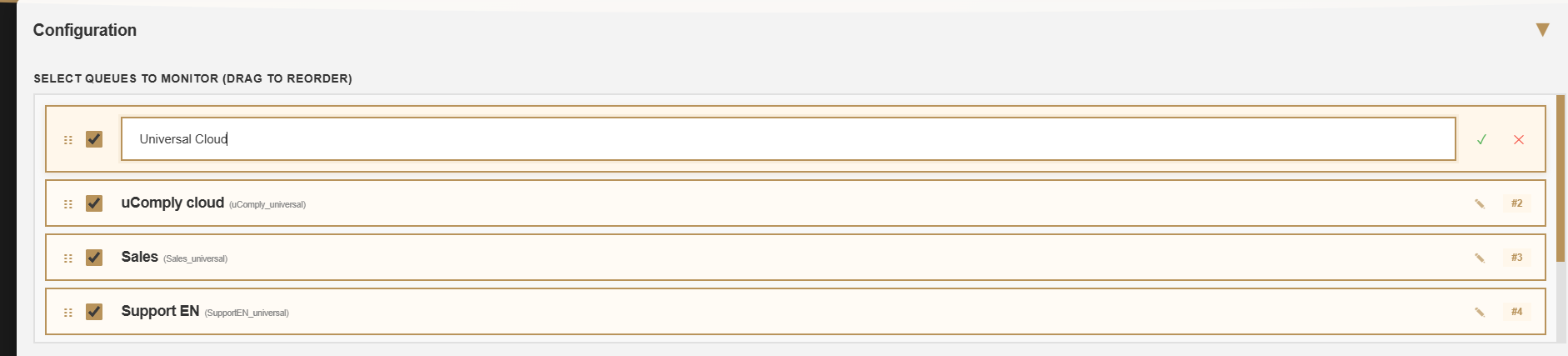
Renaming and dragging queues
Notifications: enable alert & enable sound
In the configuration you will see two toggles per queue:
- Enable alert: — shows a visual notification when an alert situation occurs.
- Enable sound: — plays a sound for alerts.
A typical alert is a queue with no agents available. Turning alerts and sound on means you won't miss these situations, even when the uWallboard isn't actively in view.
Want to know what an alert looks and sounds like? Click Test notification to trigger a preview.

Example alert: queue with no available agents
4. Monitoring
Once your configuration is saved you see the live overview of the queues you selected — waiting calls, active calls, available agents and more, per queue.

uWallboard — live monitoring
It's best to keep uWallboard open on a dedicated display or second monitor so operational situations are visible right away.
Your settings stay saved
Your configuration is stored in your browser session. Sign back in the next day in the same browser and your queues, order and notification settings are exactly as you left them. If you use a different browser or device, you configure it once there as well.
The full uWebChat Voice portal
Alongside uWallboard there is the full uWebChat Voice portal: https://portal.uwebchat.com. That portal is intended for administrators and provides:
- Queues & hunting: — create queues, assign agents, configure hunting strategy
- IVR menus: — route inbound callers through choice menus
- Opening hours & presence: — control when queues are reachable
- Audio & call recording: — welcome messages, hold music, optional recording
- Reporting: — call statistics and historical reports
- Agent & group management: — add users and assign roles
Do you have administrator access to the uWebChat Voice portal? Read the full uWebChat Voice manual.
Need help?
Stuck somewhere? Email support@universal.cloud — we're happy to help.
Useful links
Chat With Us
Get instant help from our support team
News & Insights
Critical PHP vulnerability: what you need to know and what we are doing
2026-10-21
Data processing agreement updated to version 2.1: new sub-processor for uBackup
2026-10-20
ConnectWise Cloud Backup service interruption: backups temporarily paused
2026-10-17
Related Articles
Need More Help?
Can't find what you're looking for? Our support team is ready to assist.
Submit a Support Ticket