uWebChat managing groups
Create and manage groups, hunting methods, opening hours, presence and group settings in uWebChat.
A group is a collection of agents which can be hunted in a pre-defined order. When a chat user initiates a group chat, uWebChat will hunt the first available agent in that group.
Managing groups
Use the following commands:
- Show groups: — Show all groups
- Add group: — Create a new group
- Remove group: — Delete a group
- Edit group: — Edit group properties
- Create style: — Create a style for the group
Group styles
With a Professional or Enterprise license, you can change the appearance of a group chat: background color, text color of agent and user messages.
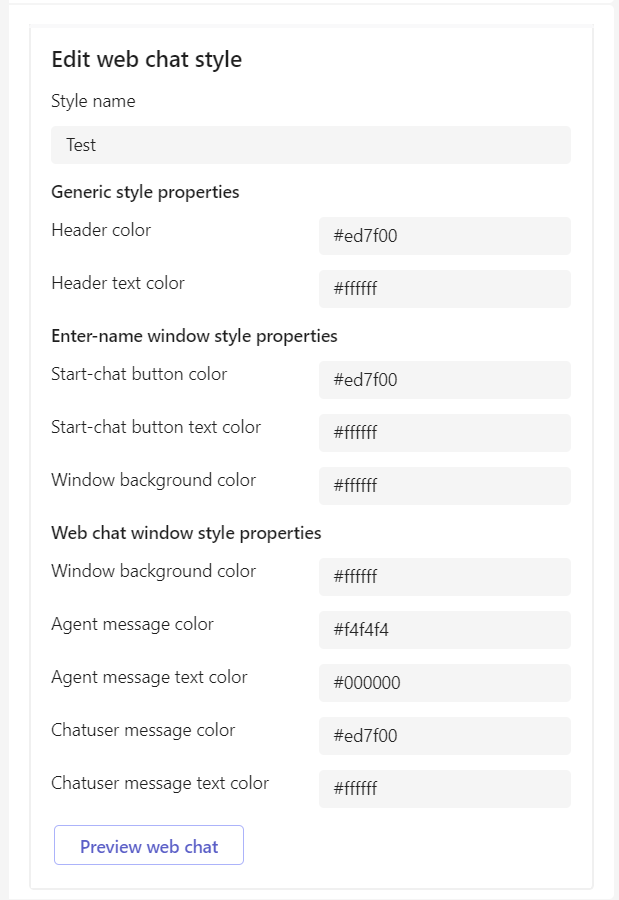
Group style
Use Preview web chat to see a preview. Changes take about 15 minutes to become visible.
Create group
When creating a group with Add Group, you will be asked to set:
- Group Language: — Preferred language of the group
- Visitor Language Prompt: — Whether visitors can choose between group or browser language
- Leave a Message: — Enable when no agents are available
- Style: — Select a custom group style
- Opening Hours or Always Open: — Define group availability
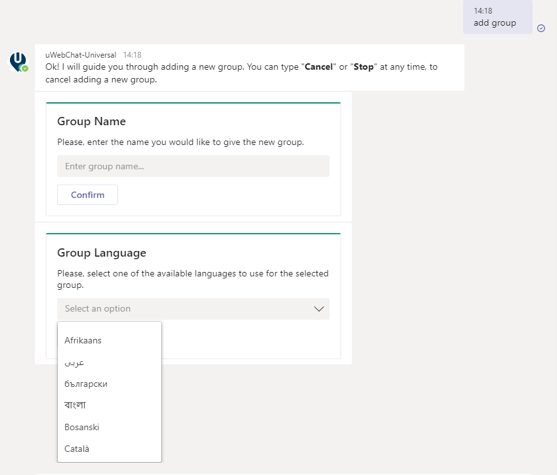
Create group
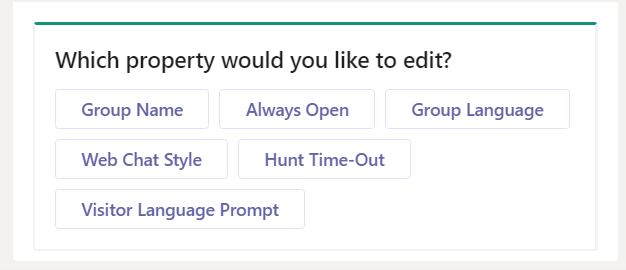
Set language
Real-time translation
The Enterprise edition offers real-time translation. Set the group language during creation or via Edit Group > Group Language.
When a chat user starts a group chat, the chat window will be translated to the chosen group language.
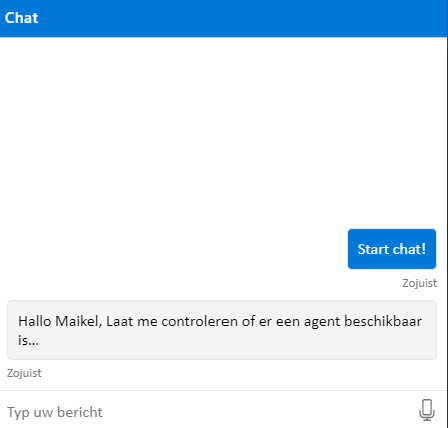
Translated chat window
The name entry screen is always translated to the visitor's browser language.
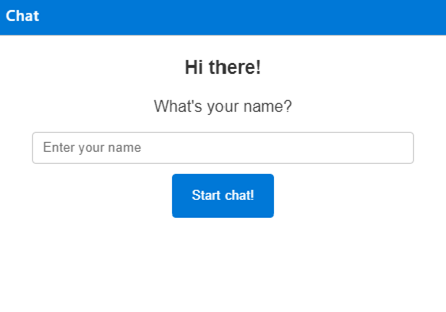
Name entry
Visitor language prompt
You can set whether visitors can choose which language to use, based on their browser language or the group language.
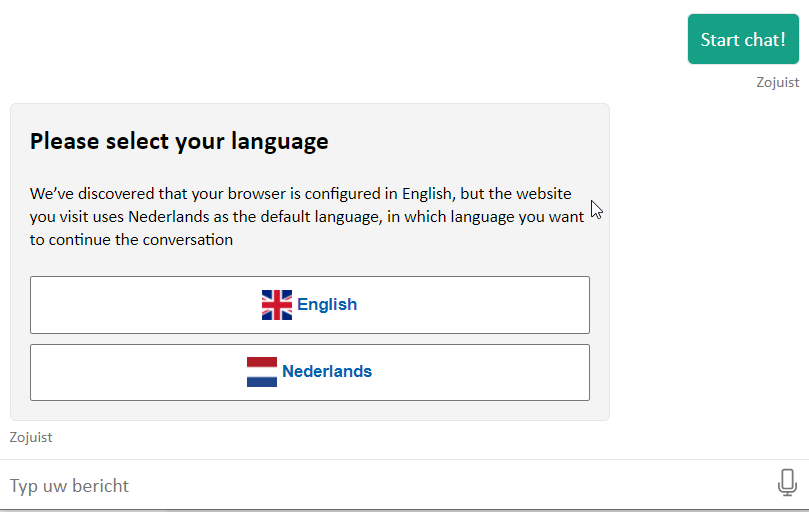
Visitor language choice
Leave a message
When no agents are available or the group is outside business hours, visitors can leave a message.
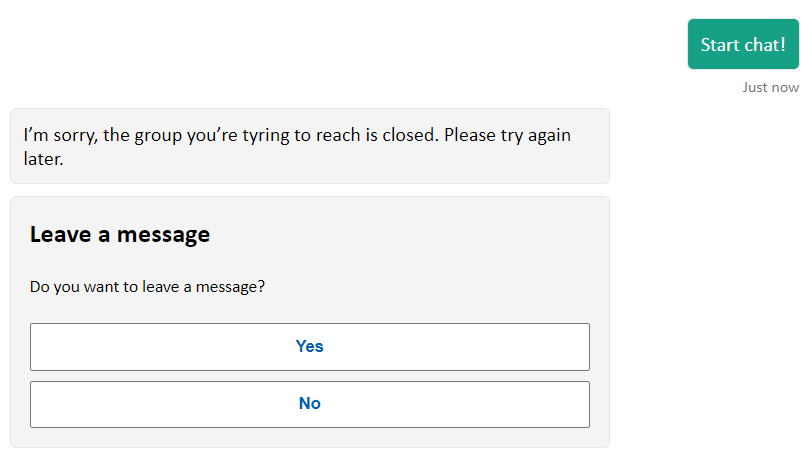
Leave a message prompt
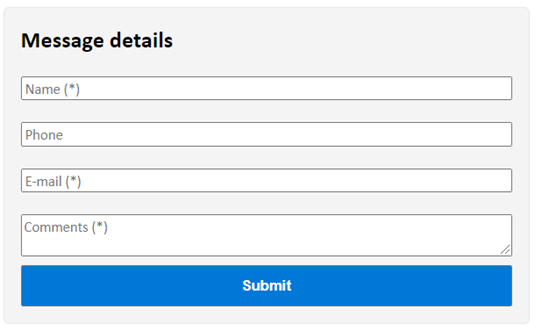
Message form
All group members will receive the message as a rich card.
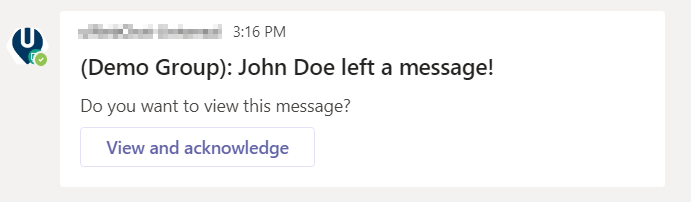
Message received
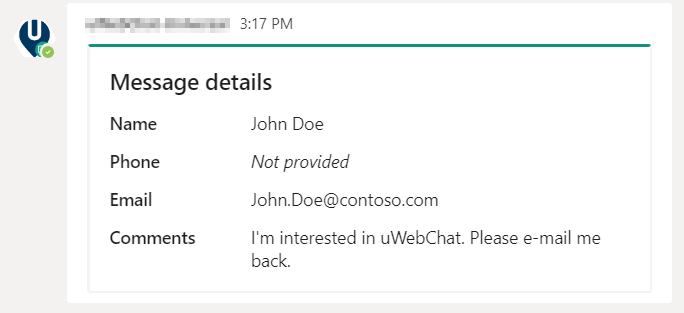
View message
Once an agent has acknowledged the message, other agents cannot receive it anymore.

Message acknowledged
Custom button
You can add a custom button that redirects to a URL (e.g. book a meeting). Manage via Edit Group > Leave a Message Button.
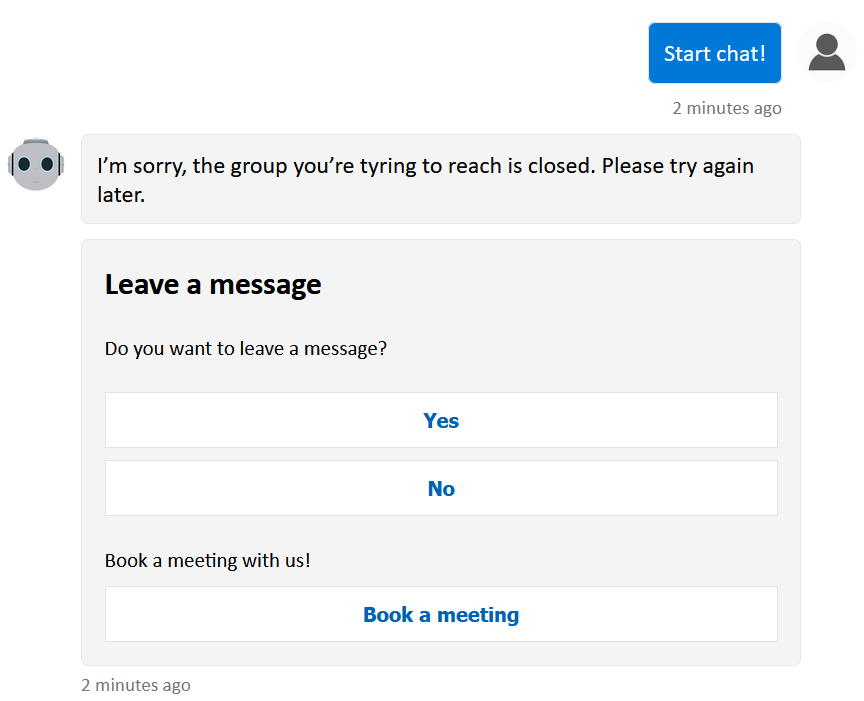
Custom button
Managing group members
Use the following commands:
- Show members: — Show group members
- Add member: — Add an agent to the group
- Edit member: — Edit group member properties
- Remove member: — Remove an agent from the group (does not delete the agent)
Hunting methods
uWebChat offers three hunting methods:
- Default: — Hunting based on Hunt Order Number. Agent with the lowest number is hunted first. Equal numbers: based on creation date.
- Round Robin: — Like Default, but the last agent who accepted a chat is skipped (unless no other agents are available).
- Simultaneous Hunting: — Ignores all Hunt Order Numbers. All agents in the group are hunted simultaneously.
Managing opening hours
With the Professional version or higher, you can define opening hours. Commands:
- Show hours: — Show all opening hours for a group
- Add hours: — Add opening hours
- Remove hours: — Remove opening hours
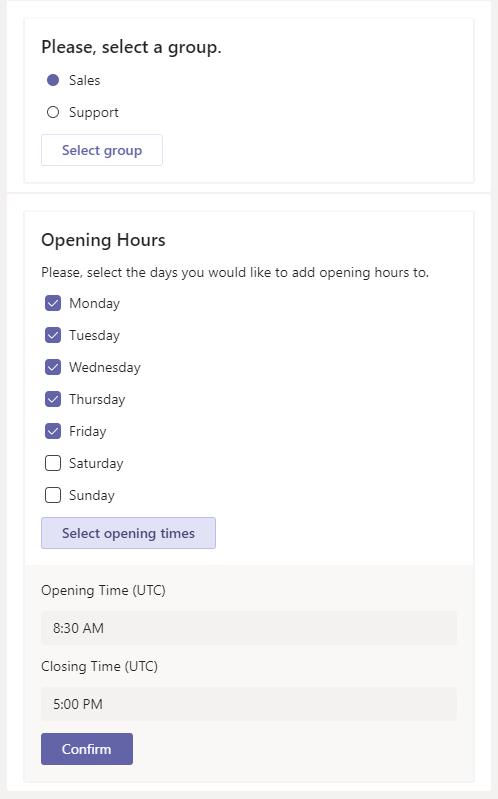
Opening hours
Hunt Time-Out
Adjust the duration of the hunting process per group via Edit Group > Hunt Time-Out.
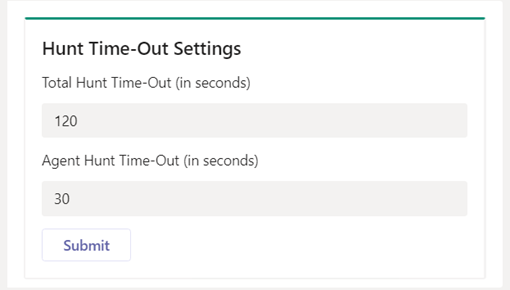
Hunt Time-Out
- Total Hunt Time-Out: — Maximum duration of the entire hunting process
- Agent Hunt Time-Out: — Maximum duration per agent before switching to the next
Agent and group presence
uWebChat uses agents' Teams presence to determine if they can be hunted.
Presence configuration
Starting from version 1.17.0, admin consent must be granted at the tenant level. This is a one-time action that allows uWebChat to read rich presence information.
Consent can be granted via the registration dialog or via Help > Manage Permissions > Teams Presence.
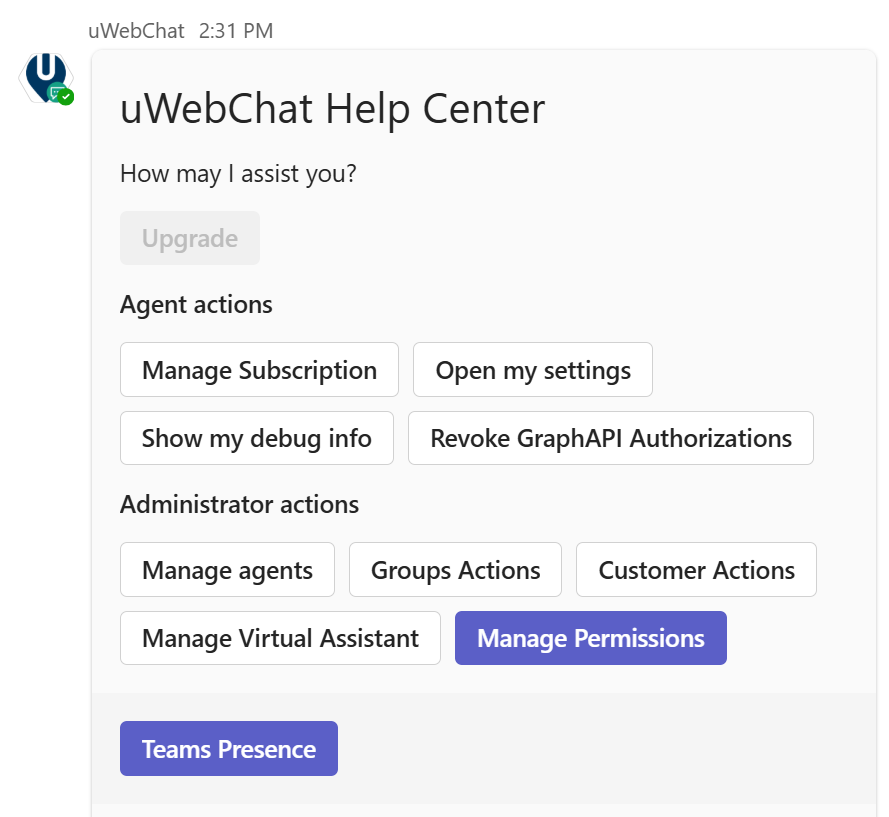
Presence consent menu
Agent presence table
| MS Teams status | Can be hunted |
|---|---|
| Online | Yes |
| Busy | Yes |
| Do not disturb | No |
| Be right back | No |
| Away | No (see Hunt When Away) |
| Offline | No |
Exceptions: - Agent who used Unsubscribe cannot be hunted, even if Online/Busy - Agent already in a conversation cannot be hunted by other chat users - If Teams presence cannot be fetched, it will be ignored
Hunt When Away
Per group, you can set that agents are also hunted when their status is Away. Go to Edit Group > Hunt When Away.
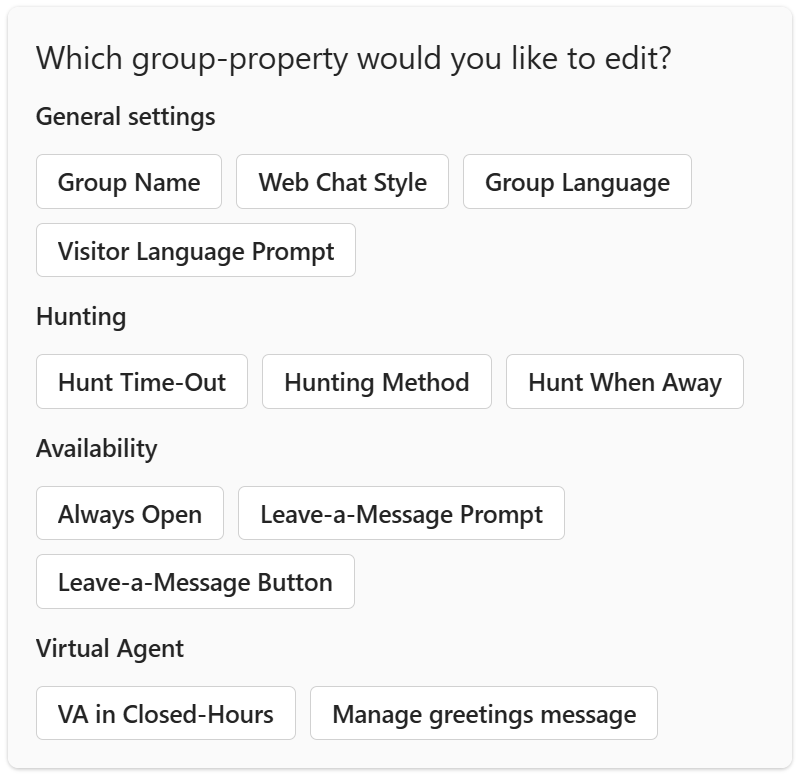
Hunt When Away setting
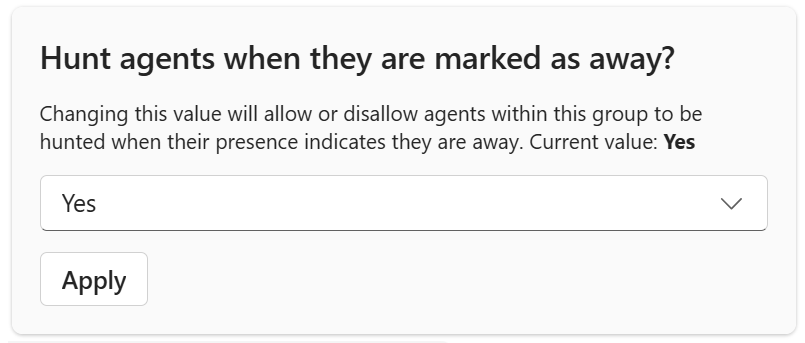
Hunt When Away confirmation
Group presence
Groups have their own presence based on their members:
| Condition | Status |
|---|---|
| Contains available group members | Available |
| Group members unavailable | Busy |
| Outside of opening hours | Away |
Chat With Us
Get instant help from our support team
News & Insights
The new uWebChat Voice portal is live
2026-03-31
Laptop prices are rising fast: order now before it's too late
2026-03-16
Microsoft 365 E7: the new all-in-one suite for AI and productivity
2026-03-12
Related Articles
Need More Help?
Can't find what you're looking for? Our support team is ready to assist.
Submit a Support Ticket