uWebChat managing agents
Register, activate, remove agents and manage personal settings in uWebChat.
Once you have set up uWebChat, you might want other users in your tenant to start using uWebChat as well. This chapter explains how to register new agents and manage them.
Installing uWebChat for additional agents
Other agents can add uWebChat by opening Teams, clicking the ellipsis (...) button on the left side and searching for uWebChat. Click the uWebChat button and then click Add.
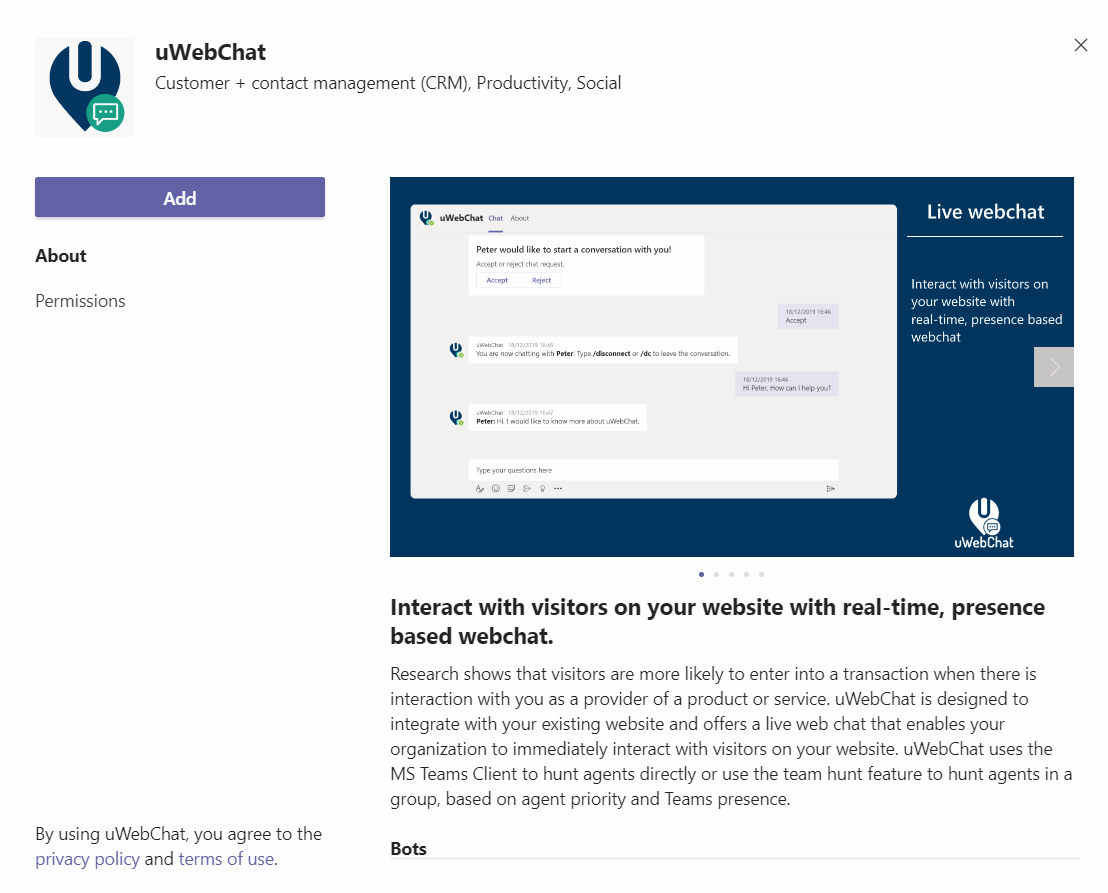
Add uWebChat
It may be useful for the agent to pin the uWebChat application to the left bar of Teams by right-clicking the icon and selecting Pin.
If users are unable to add uWebChat, this might be related to permission settings on your Microsoft 365 tenant. By default, all users can add applications. If limited permissions have been set up, uWebChat may need to be whitelisted via the Teams Admin Center.
Register other agents
To register new agents, the Teams user needs to start a conversation with uWebChat. This will initiate a registration dialog.
After registration, the admin agent will receive a message:
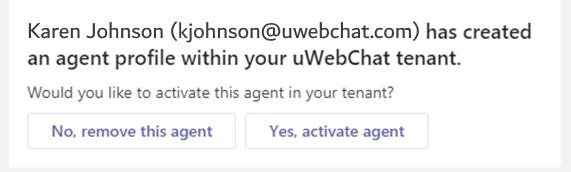
Registration confirmation
The admin can choose to activate the agent or remove its registration. Admin agents can activate and remove agents at any time using the Activate Agent and Remove Agent commands.
Managing agents
There are four commands for agent management:
- Show me all agents: — Shows all agents in your tenant, active or not
- Activate agent: — Guides you through activating an agent
- Remove agent: — Guides you through removing an agent
- Manage privileges: — Manage agent rights and privileges
- - Grant administrator — Grant administrative privileges
- - Revoke administrator — Revoke administrative privileges
Personal settings
Every agent has personal settings they can manage themselves using the My Settings or Settings command:
- Chat logs: — Enable or disable saving chat logs to OneDrive
- Language: — Select a primary language for real-time translation
- Translation: — Enable or disable real-time translation
- Avatar: — Enable or disable avatar visibility for website visitors
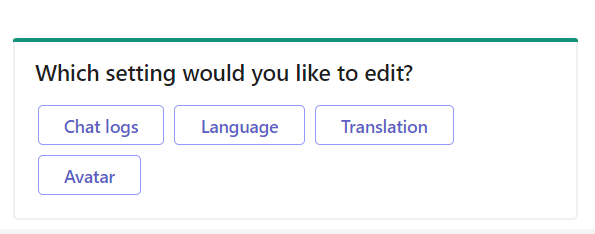
Personal settings
Chat With Us
Get instant help from our support team
News & Insights
The new uWebChat Voice portal is live
2026-03-31
Laptop prices are rising fast: order now before it's too late
2026-03-16
Microsoft 365 E7: the new all-in-one suite for AI and productivity
2026-03-12
Related Articles
Need More Help?
Can't find what you're looking for? Our support team is ready to assist.
Submit a Support Ticket