uWebChat installation & licensing
Install uWebChat in Microsoft Teams, purchase a license key via AppSource and upgrade your subscription.
To start using uWebChat, you will need Microsoft Teams. This can either be the Microsoft Teams client or the Microsoft Teams web application, both found at https://teams.microsoft.com/. Microsoft Teams can only be accessed by Microsoft accounts.
Get a license key (optional)
uWebChat has four different subscriptions. If you need the additional features included in one of the paid versions, you can acquire a license key.
License keys can be purchased from Microsoft AppSource. Search for "uWebChat License" on https://appsource.microsoft.com.
On the uWebChat product page, click on GET IT NOW. Afterwards, enter your Office 365 or Microsoft account and follow the steps.
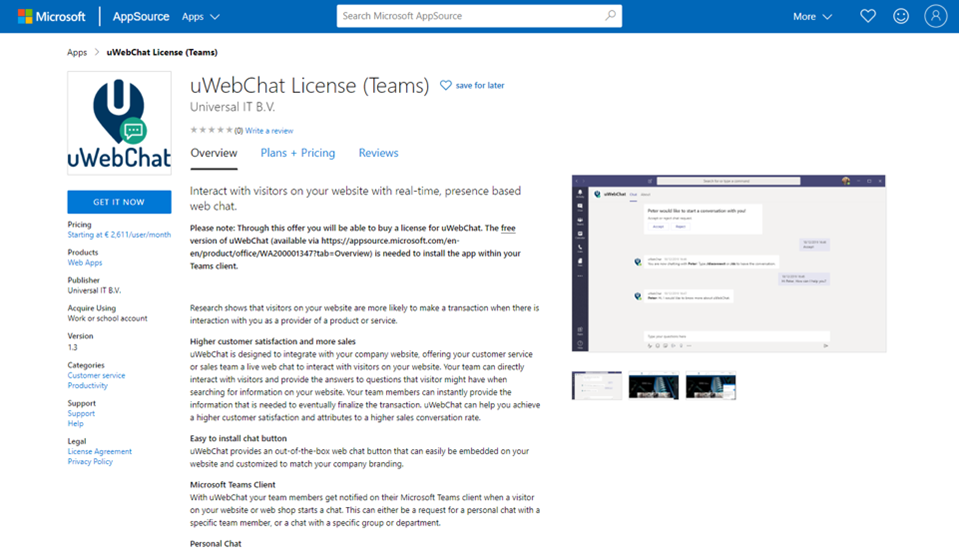
uWebChat on Microsoft AppSource
After successfully ordering, you will see a confirmation screen with a summary of your order. Select Confirm order if the information is correct.
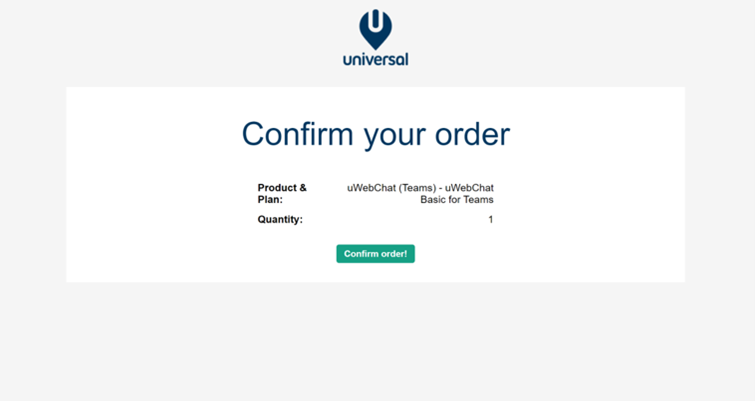
uWebChat order confirmation
After confirming your order, your activation key will appear. Copy this code and store it somewhere safe. You will not be able to recover this key if you lose it.
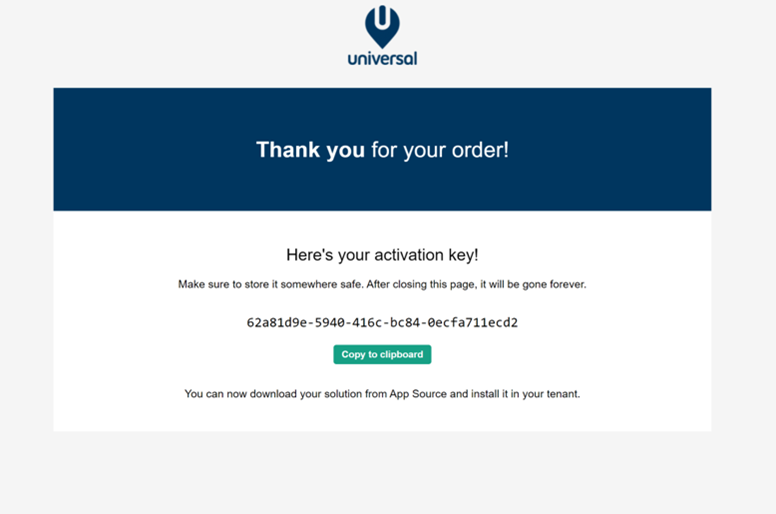
Example of uWebChat license
Upgrading free license
You can type Upgrade or Upgrade Subscription in uWebChat to start the upgrading process.
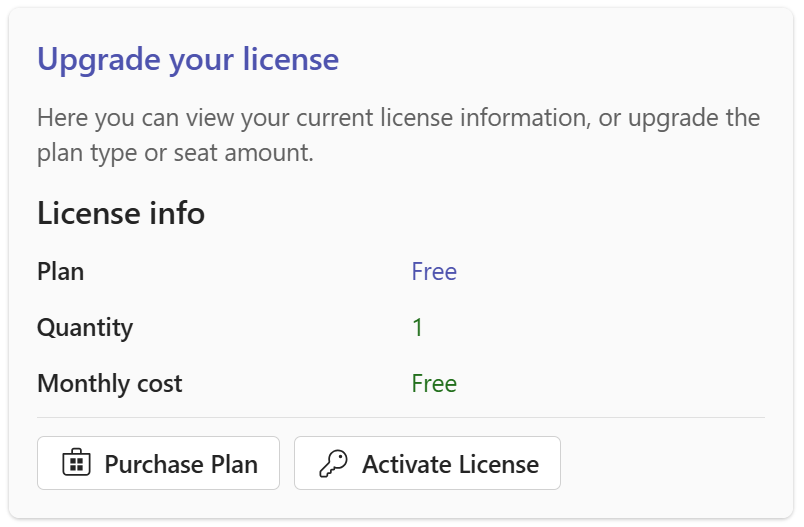
Start upgrade
Choose Purchase Plan if you are starting from scratch, or Activate License if you already have a license key.
Upon picking Purchase Plan, a rich card will appear prompting you to choose a plan.
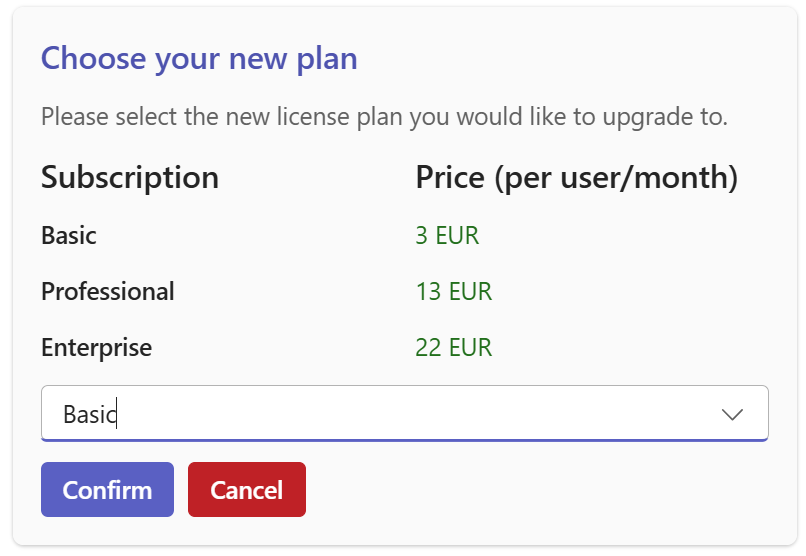
Choose plan
After choosing a plan, you will be prompted to click Purchase License, which redirects you to Microsoft AppSource. Once the key has been acquired, enter it in the relevant field.
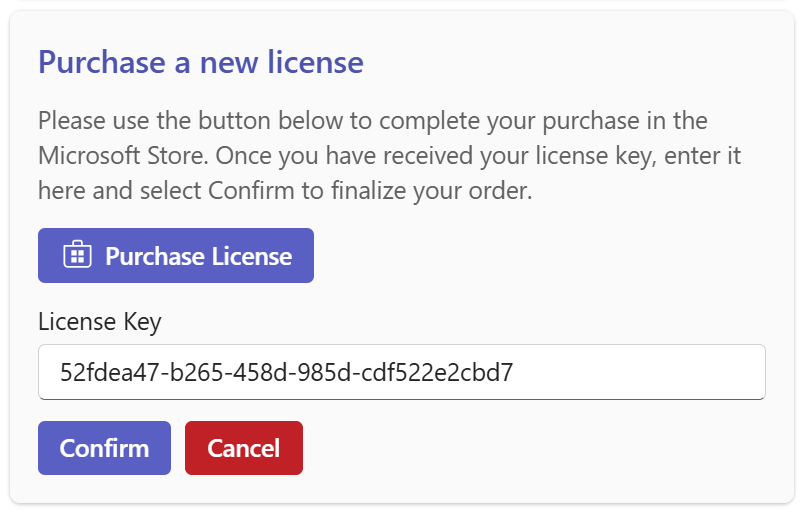
Enter license
After confirmation, a thank you message will indicate that the process has been completed successfully.
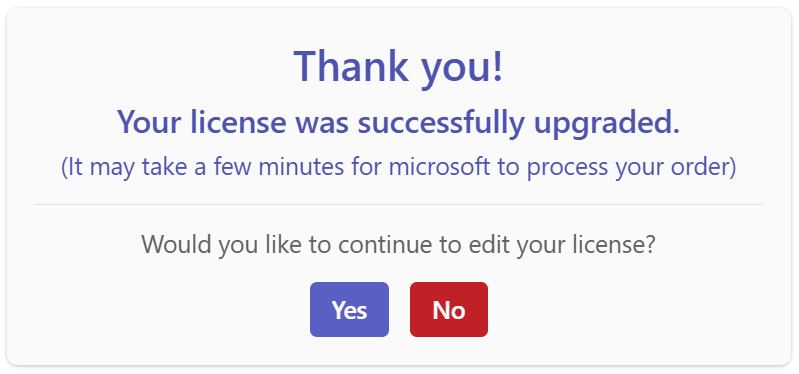
Upgrade confirmation
Purchase additional licenses
If you have a commercial edition and wish to purchase additional agent licenses, type Upgrade and choose Change Quantity. Enter the desired total number of users.
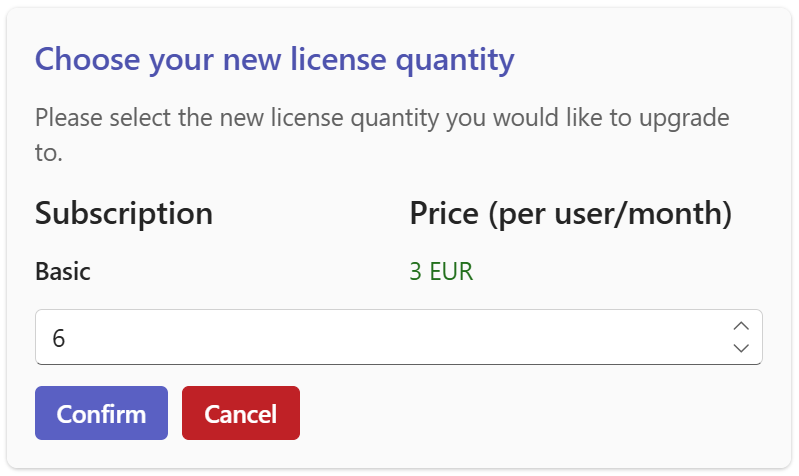
Additional licenses
A summary of your changes will appear. Click Show active license for a comparison.
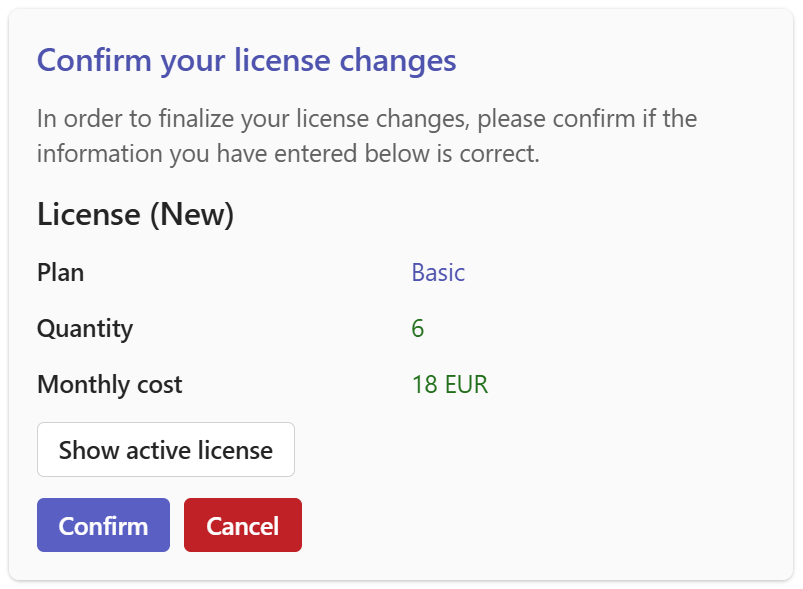
Changes summary
Change license type
To change your license type (e.g. Basic to Professional), type Upgrade and choose Change Plan. Select the desired new plan.
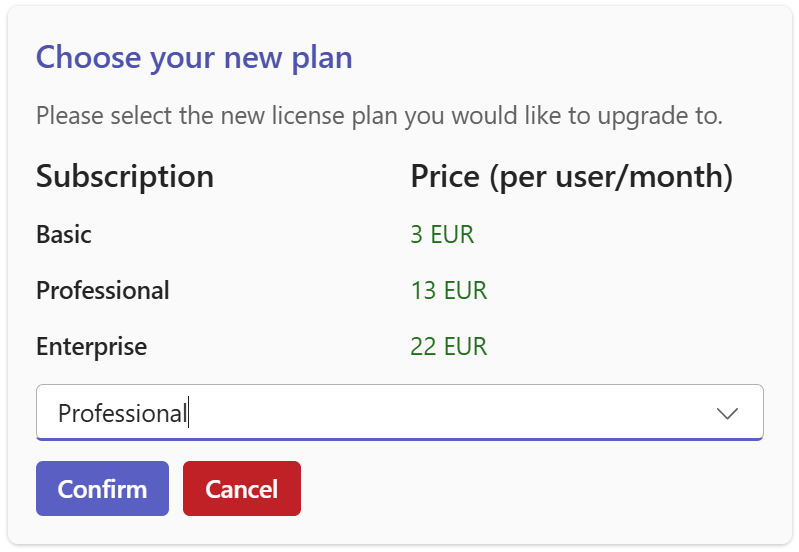
Change license type
A summary of your changes will appear. After confirmation, the new license type will be activated.
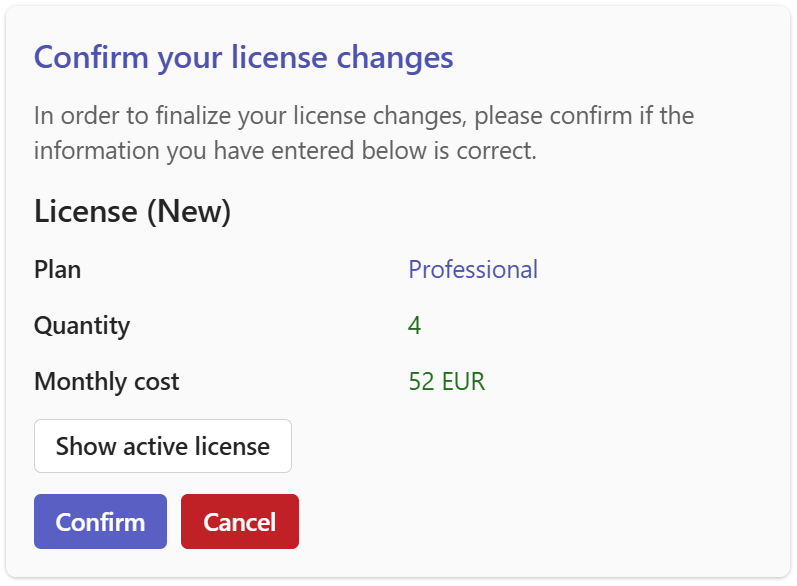
License type confirmation
It may take a few minutes for Microsoft to process your changes. If you encounter any issues, please contact support@universal.cloud.
Chat With Us
Get instant help from our support team
News & Insights
The new uWebChat Voice portal is live
2026-03-31
Laptop prices are rising fast: order now before it's too late
2026-03-16
Microsoft 365 E7: the new all-in-one suite for AI and productivity
2026-03-12
Related Articles
Need More Help?
Can't find what you're looking for? Our support team is ready to assist.
Submit a Support Ticket