uWebChat features
Overview of all uWebChat features: persistent chat, OneDrive, speech-to-text, translation, media sharing, transfers, meetings and more.
This chapter describes all available features in uWebChat, depending on your license.
Persistent chat
uWebChat offers persistent chat on your website(s). When website visitors start a chat and navigate to other pages, the current chat session will remain. Once an agent disconnects using /dc or /disconnect, the session will be closed.
Save chat logs to OneDrive
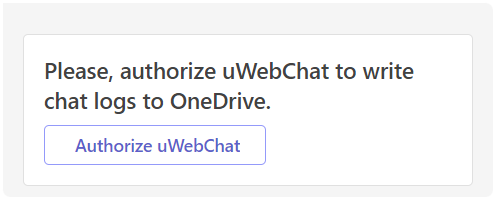
uWebChat offers integration with Microsoft OneDrive to save chat logs. This requires a valid Microsoft 365 license for OneDrive. A Global Administrator must allow uWebChat to access OneDrive through the Microsoft Graph API.
Start a conversation with a uWebChat agent who is also a Global Administrator. After ending a chat, the agent will be prompted to save the conversation to OneDrive.
OneDrive authorization
Every agent can then activate saving their chat logs. The choice will be remembered for future chats.
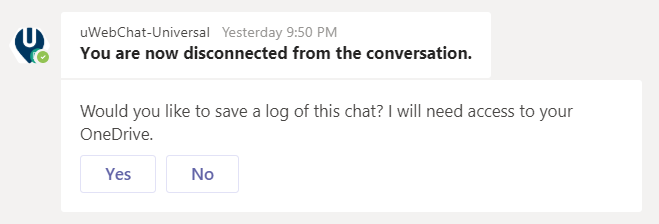
OneDrive setting
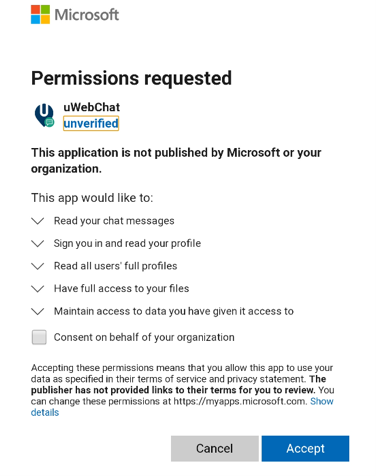
Agents also need to individually approve uWebChat via the Graph API.
Graph API authorization
Note: uWebChat conversations are not stored outside your organization's security context within Microsoft 365. Chat logs can be found in a subfolder uWebChat Chat History on the user's OneDrive.
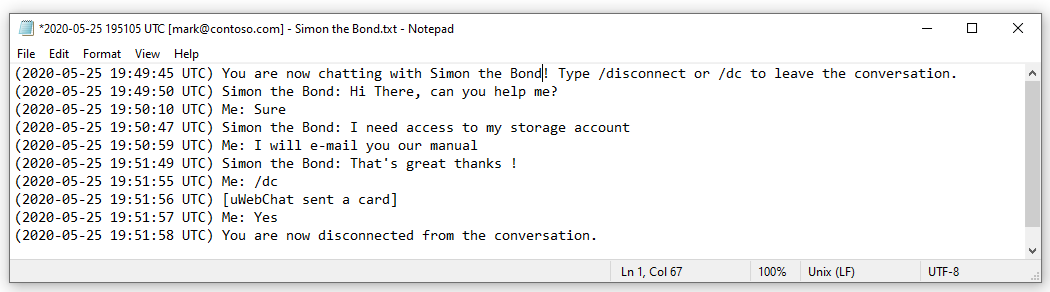
OneDrive chat logs
Share chat logs with user
With the Basic, Professional and Enterprise license, uWebChat automatically generates a transcription and shares it with the chat user when the conversation has ended.
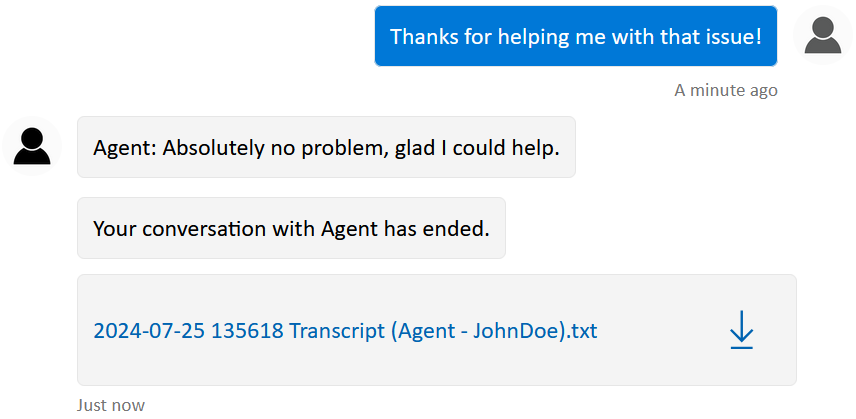
Transcription
Speech-to-text
With the Professional and Enterprise license, chat users can communicate via speech-to-text. Click the microphone icon to use this feature.

Speech-to-text
The browser may ask for permission to access the microphone.
Real-time translation
The Enterprise edition has access to real-time translation. Agents and chat users see messages in their preferred language. Set up multiple groups with a designated group language.
Agents can set their preferred language in personal settings. During a chat, the agent can use /translate to enable or disable translation.
Customize look and feel
There are two ways to customize uWebChat's appearance:
- Change the embedded button on your website via CSS
- Change colors for the chat window for a group chat (Professional/Enterprise)
Leave a message
When no agents are available or you are outside business hours, visitors can leave a message. There is also space for a custom button that redirects to a URL.
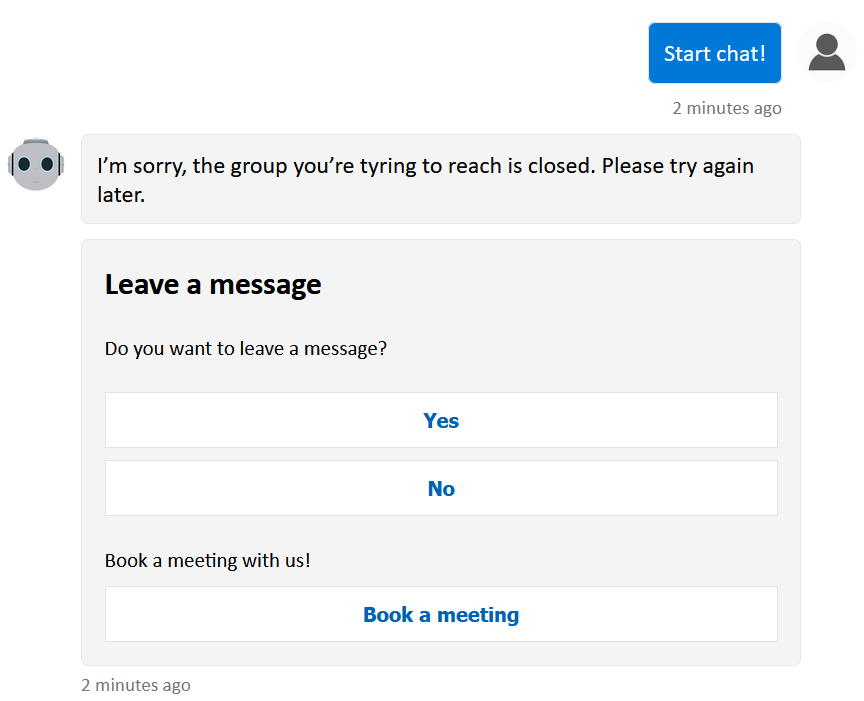
Leave a message
Meet Now - Teams Meetings
Starting from the Basic license, agents can start Microsoft Teams meetings with website visitors during a chat. Use the /meetnow command.
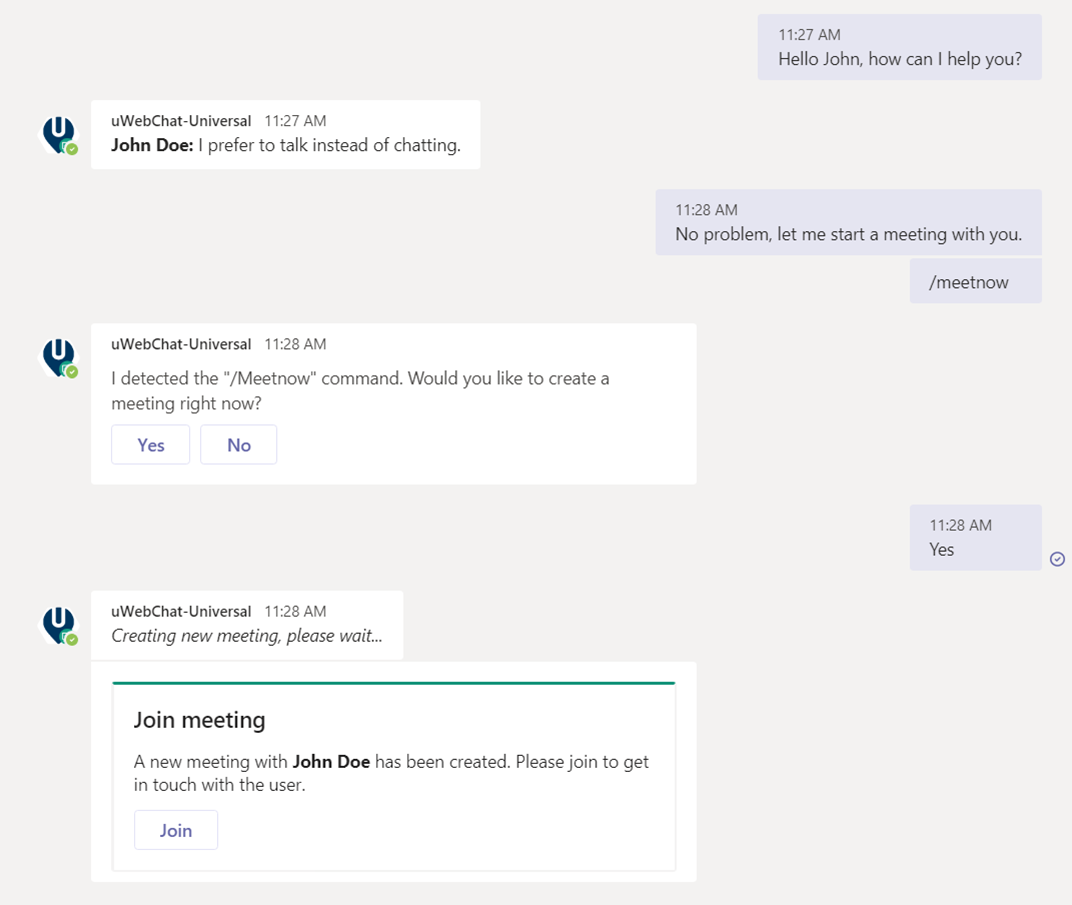
Teams Meeting
When using this for the first time, the agent needs to authorize uWebChat via the MS Graph API.
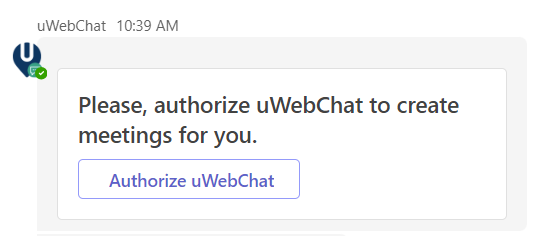
Graph API authorization
Ban visitors
Starting from the Basic license, agents can ban visitors using the /ban command to temporarily block their IP address.
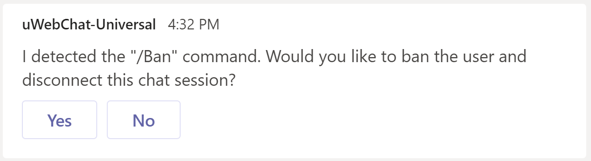
Ban visitor
The first ban lasts 7 days. Subsequent bans are calculated: P = 7 + (number of bans x 7) days.

Ban details
Idle conversation reminders
When a visitor has not sent a message within 5 minutes, a reminder is sent to the agent to disconnect if needed.

Idle reminder
Reporting
For statistics about your uWebChat environment, use uWebChat Reporting at https://report.uwebchat.com/. Sign in with the same Microsoft account that is a uWebChat admin.
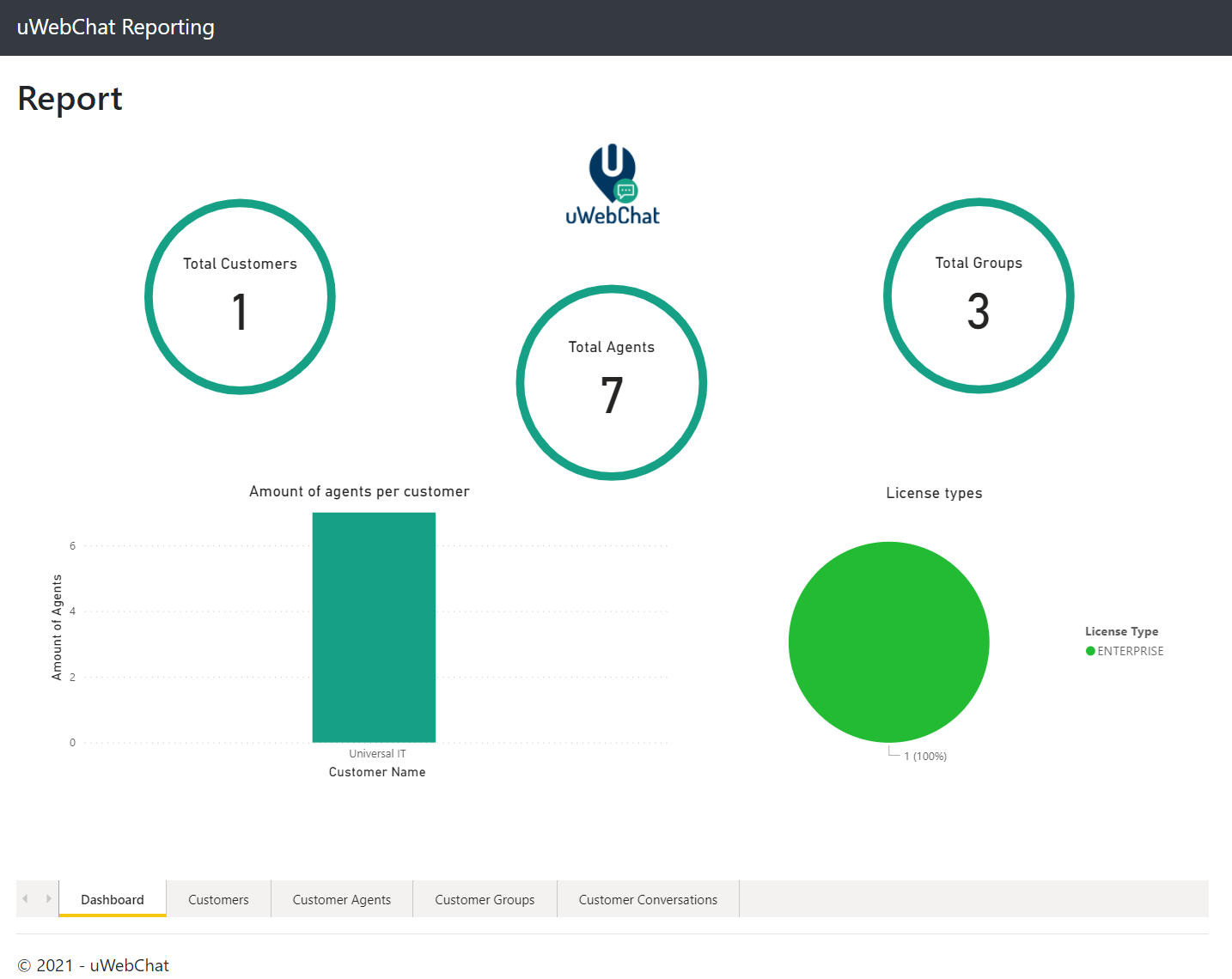
Reporting
Enable additional fields
When embedding, you can enable additional fields for website visitors: Email, Company, Phone and Country. Add the parameter &fields=email,company,phone,country to the embed URL. Make fields required with &required=email,company.
Avatars
You can enable uWebChat to use Microsoft 365 avatars for your agents.
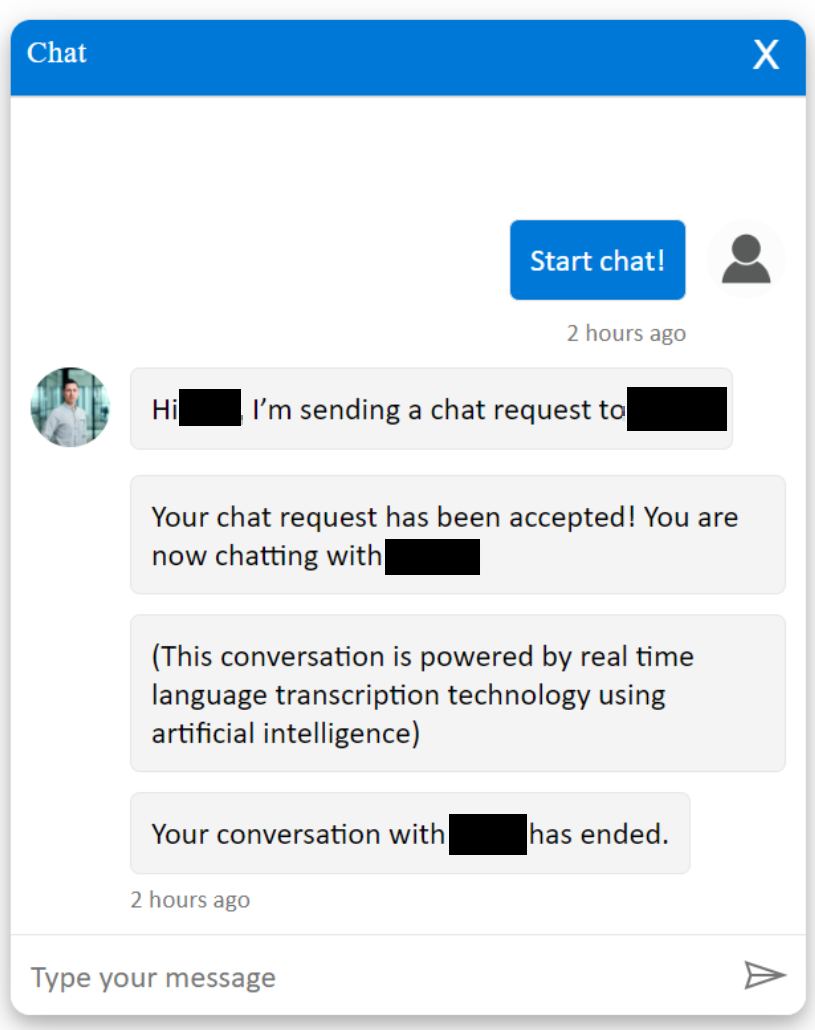
Avatar example
Enable avatars as administrator
Use the Help command, select Manage Customer Settings > Avatar and set to Yes.
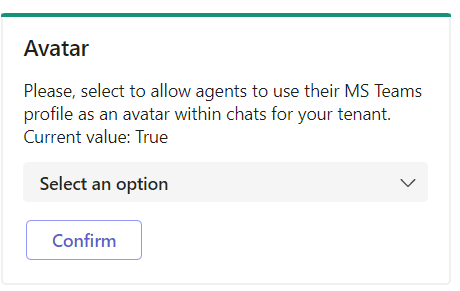
Avatar admin
Enable avatar as agent
Use the Settings command, go to Avatar and set to Yes.
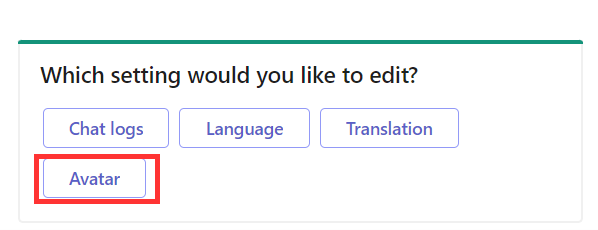
Avatar agent
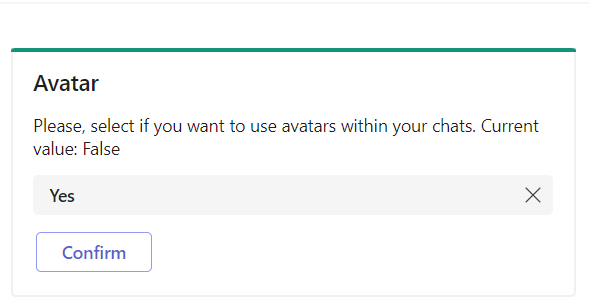
Avatar setting
Transfer conversations
During a conversation, agents can transfer the chat to another agent using the /transfer command.
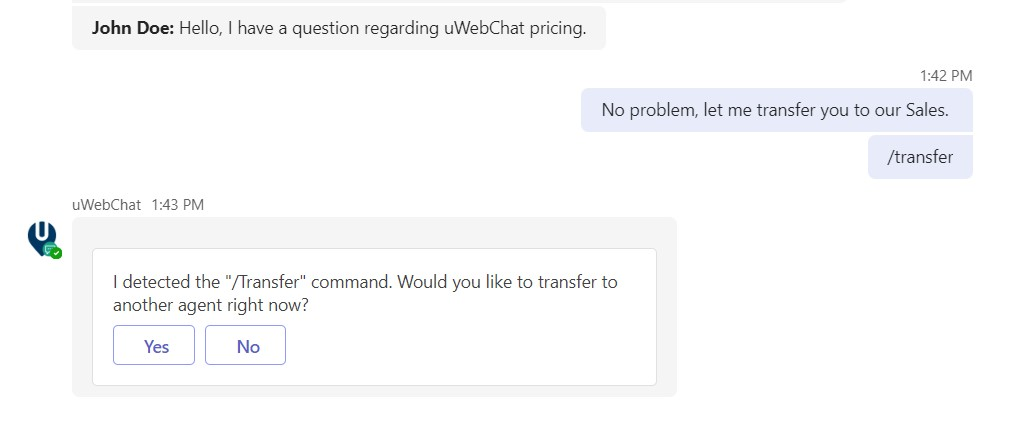
Start transfer
Select the desired agent from the dropdown menu.
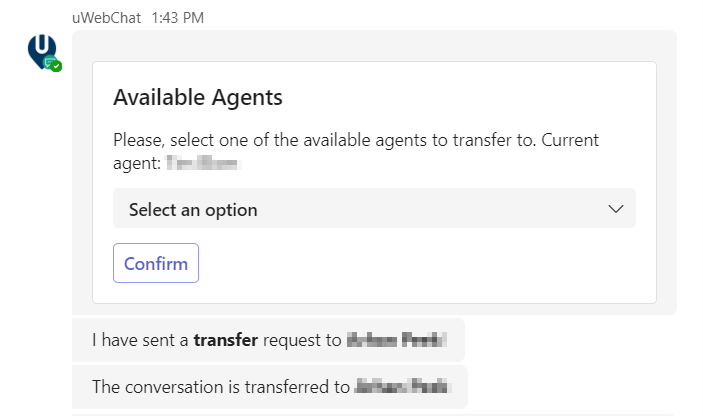
Select agent
The other agent receives a request to accept the transfer.
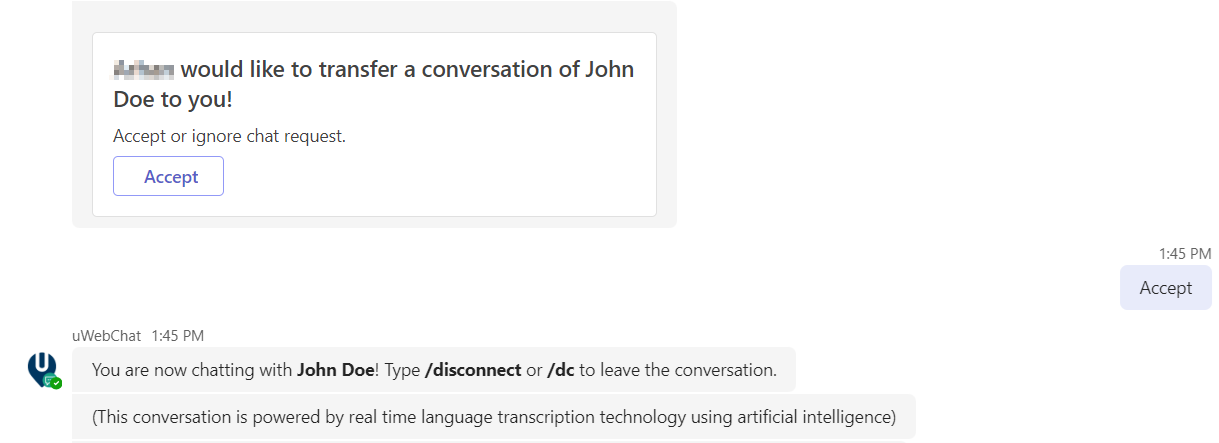
Accept transfer
After completion, the original agent is disconnected.
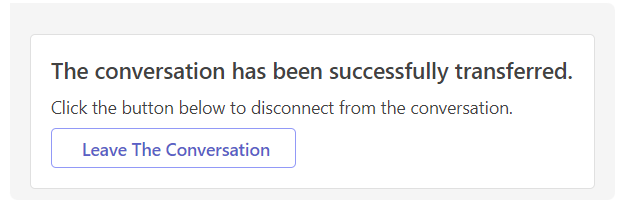
Transfer completed
Media sharing
With the Professional or Enterprise license, visitors and agents can share files during a conversation.
Sharing files as a visitor
The upload button automatically appears in the bottom left corner of the chat window.

Media button
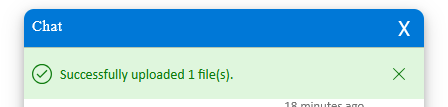
Upload file
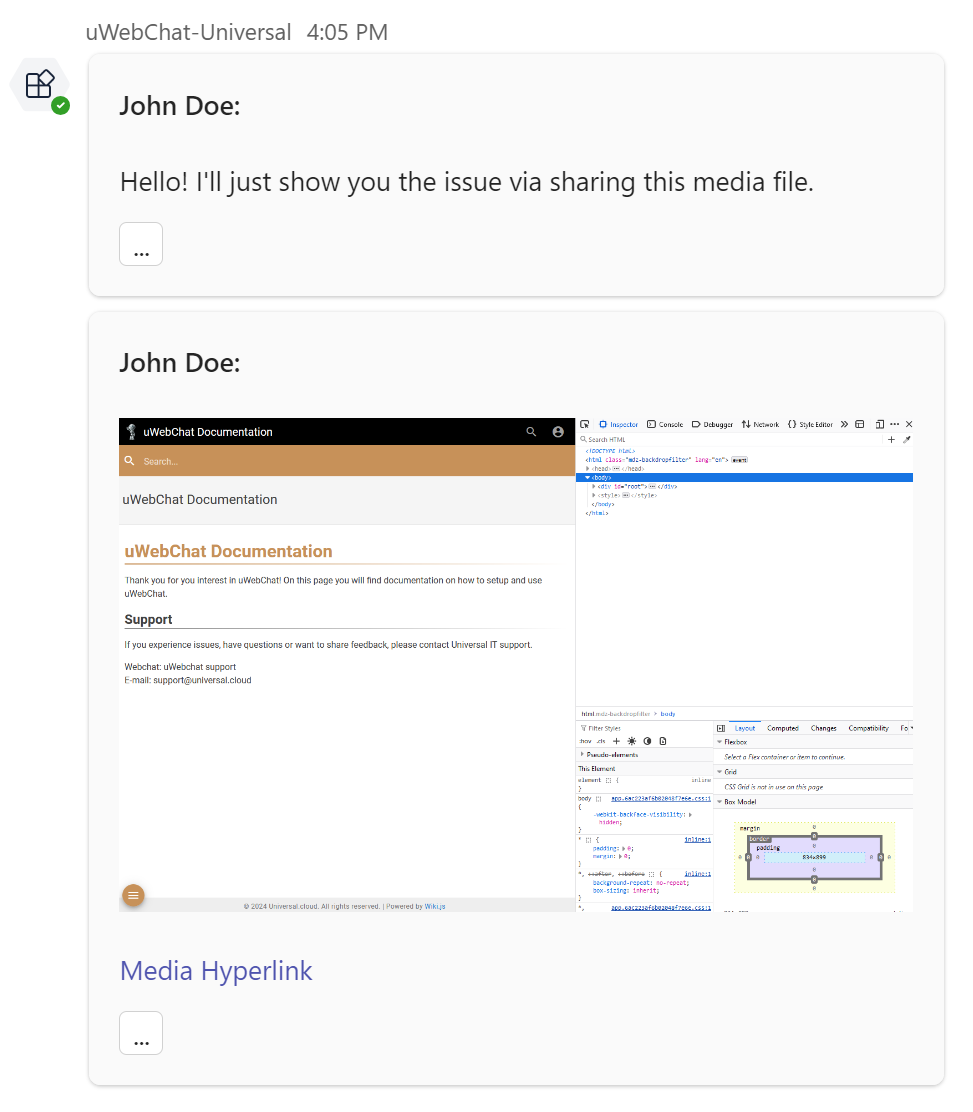
Media received by agent
Restrictions
Supported media types: JPEG, PNG, GIF, WebP, BMP, TIFF. Maximum file size: 4MB. Dimensions: minimum 50x50, maximum 7200x7200 pixels.
| License | Limit per conversation |
|---|---|
| Trial | 10 |
| Professional | 20 |
| Enterprise | 40 |
Country blocklist
The Enterprise edition offers the option to block visitors from specified countries. Go to Help > Administrator actions > Customer actions > Manage blocklist.
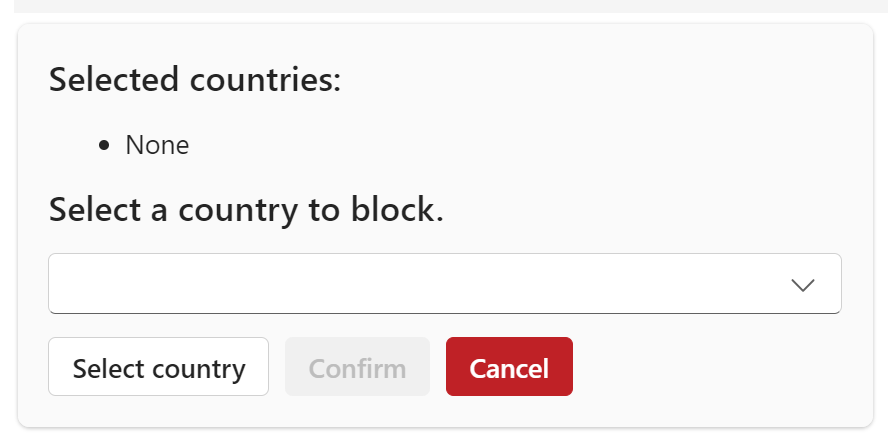
Add countries
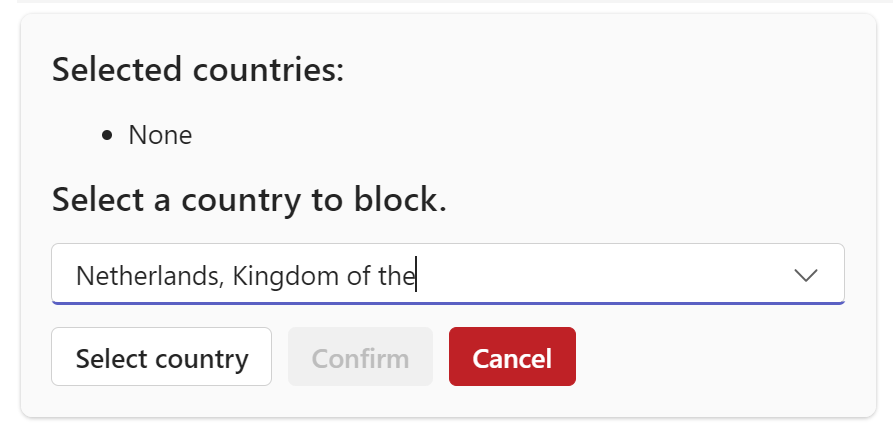
Select country
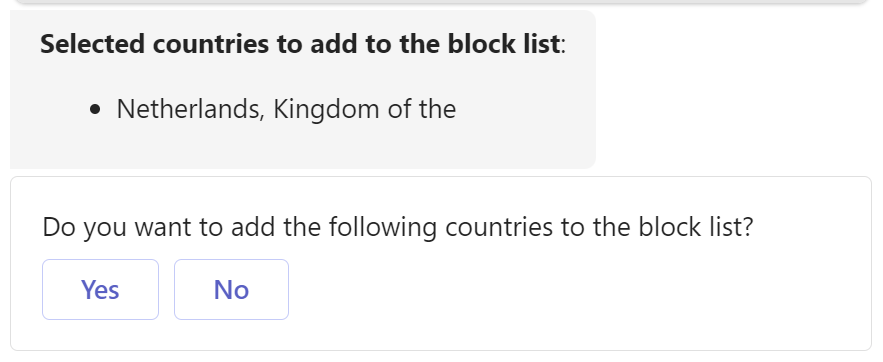
Confirm blocklist
Blocked visitors will see the following message:
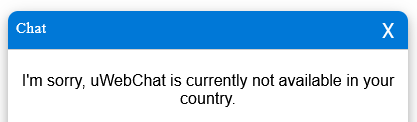
Blocked message
Each usage deducts from your monthly allowance: 600 x Enterprise Licenses per month.
Chat With Us
Get instant help from our support team
News & Insights
The new uWebChat Voice portal is live
2026-03-31
Laptop prices are rising fast: order now before it's too late
2026-03-16
Microsoft 365 E7: the new all-in-one suite for AI and productivity
2026-03-12
Related Articles
Need More Help?
Can't find what you're looking for? Our support team is ready to assist.
Submit a Support Ticket