uWebChat configuration
First-time uWebChat setup, commands, subscribing, website embedding, domain management and Power Pages integration.
After installation, uWebChat needs to be configured. This chapter covers the first-time setup, commands, the subscribe mechanism and embedding uWebChat on your website.
First time setup
The first time someone in your tenant starts a conversation with uWebChat, a configuration dialog will appear. Enter your company name in the field.
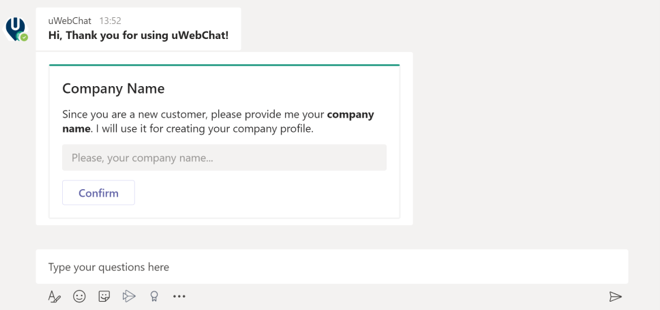
First setup step 1
It is not required to activate a paid version during the initial setup. You can start using uWebChat without entering a license key (Free edition). You can upgrade later using the Upgrade command.
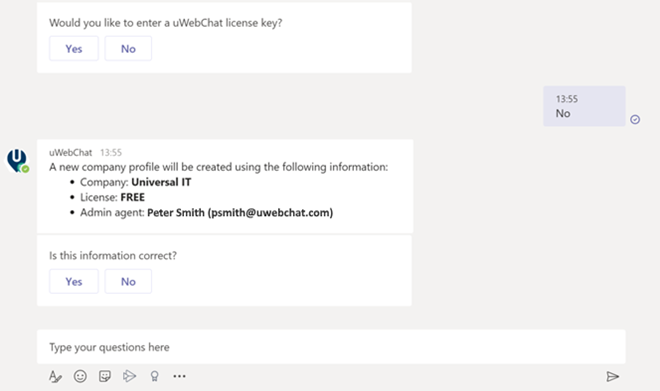
First setup step 2
If you select Yes, you can enter the license key.
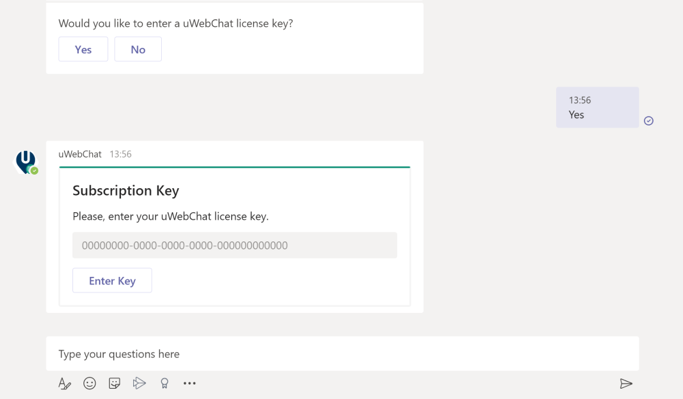
Enter license key
After confirming, a new company profile will be created. uWebChat has now been configured in your tenant!
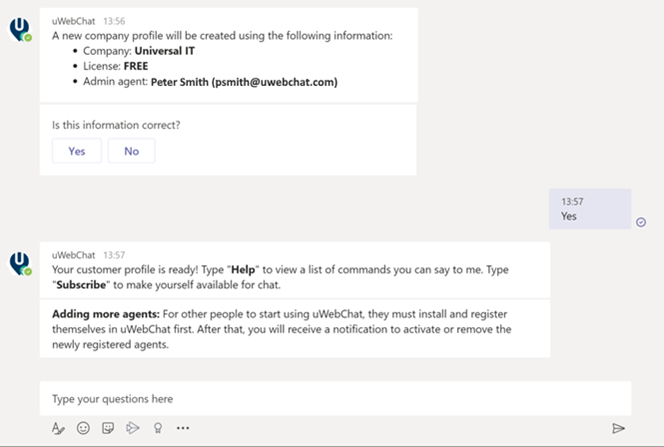
Setup complete
Commands and settings
In this manual we refer to direct text commands when configuring uWebChat. Commands such as Subscribe, Debug and Stop can be typed into your Teams chat bar.
uWebChat also offers a graphical configuration method. The Help command shows a Teams rich card which can be used to select settings.
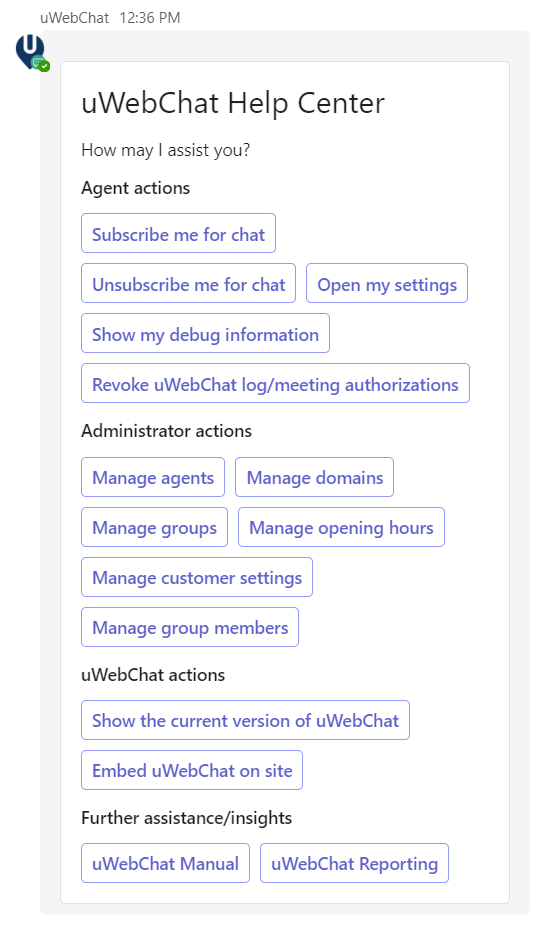
Help command
Depending on your permissions (admin or user) you will see the relevant settings.
Subscribing
uWebChat uses a subscribe mechanism which enables agents to decide whether they want to receive chat requests.

Subscribe mechanism
To make yourself available for chat, type Sub, Subscribe or Subscribe me. Once subscribed, website visitors can start a chat with you (also depends on your Teams presence).
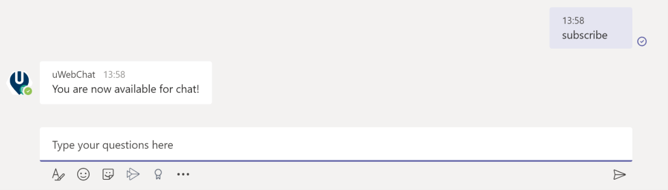
Subscribed
To make yourself unavailable, type Unsub, Unsubscribe or Unsubscribe me.

Unsubscribed
There is no limit to the number of times an agent can subscribe or unsubscribe. New agents are subscribed by default.
Website embedding
Please note: Embedding uWebChat requires access to edit HTML code for your website.
Domain whitelisting
uWebChat requires adding your domain(s) before you can embed it on a website. This is a security measure. The number of domains you can add depends on your license.
Wildcard domains and sub-domains are not supported. If you own example.com and wish to add chats to example.com, sales.example.com, marketing.example.com, this counts as 3 domains.
Add and manage domain
Use the Add Domain command to add a domain.
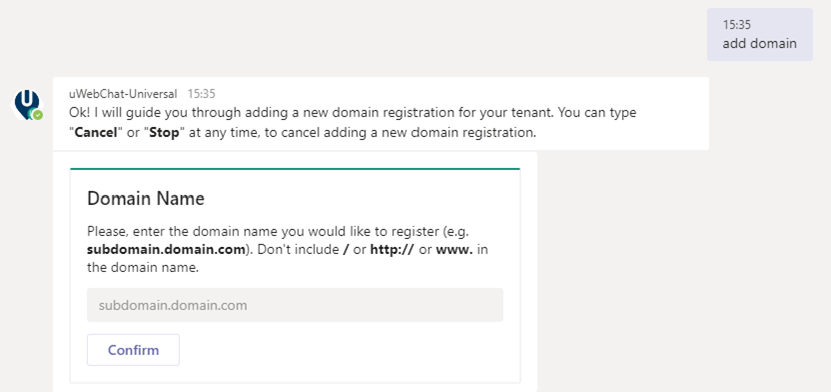
Add domain
Use Edit Domain to change a registered domain. Use Show Domains to view all registered domains. Use Remove Domain to delete a domain.
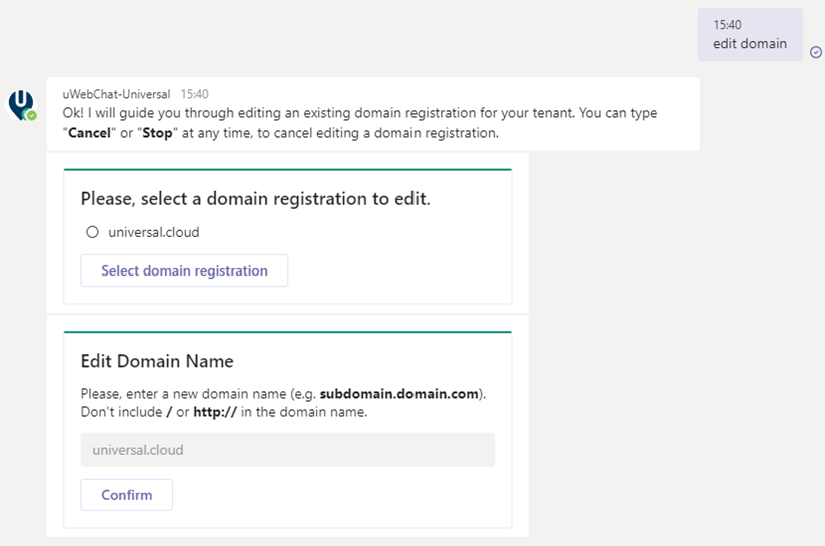
Edit domain
Embed uWebChat on your website
Type the Embed or Embed Webchat command in uWebChat. This generates a code snippet for your website. Choose between a direct agent chat or group chat.
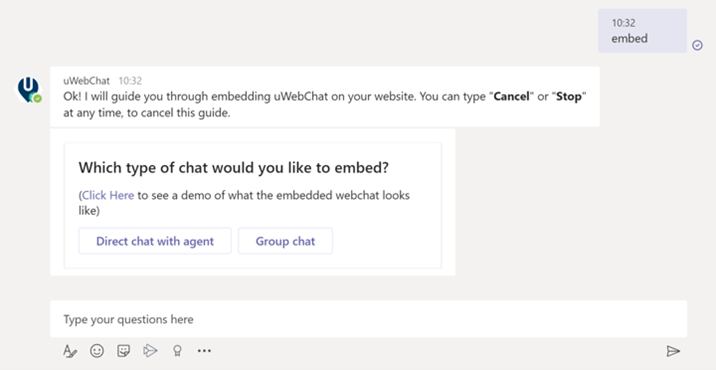
Embed step 1
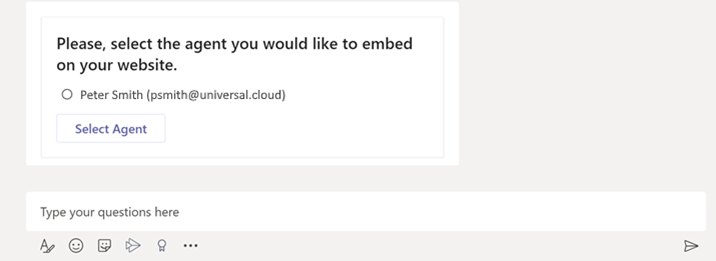
Embed step 2
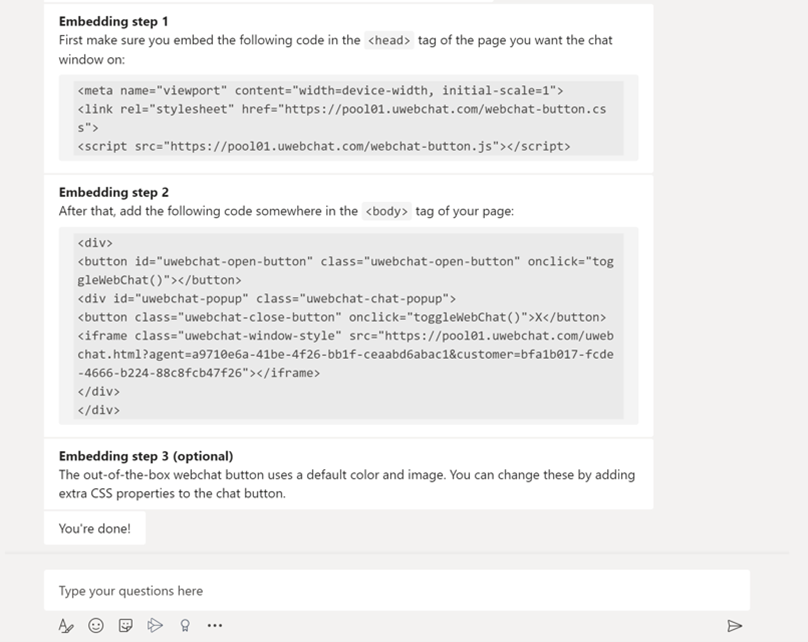
Embed step 3
Copy and paste the code snippets into the HTML code of your website.
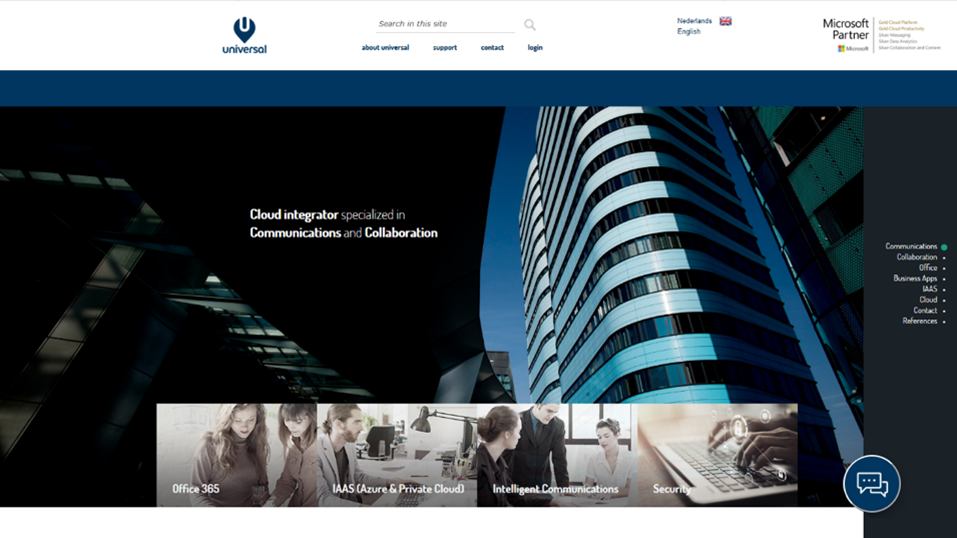
uWebChat on website
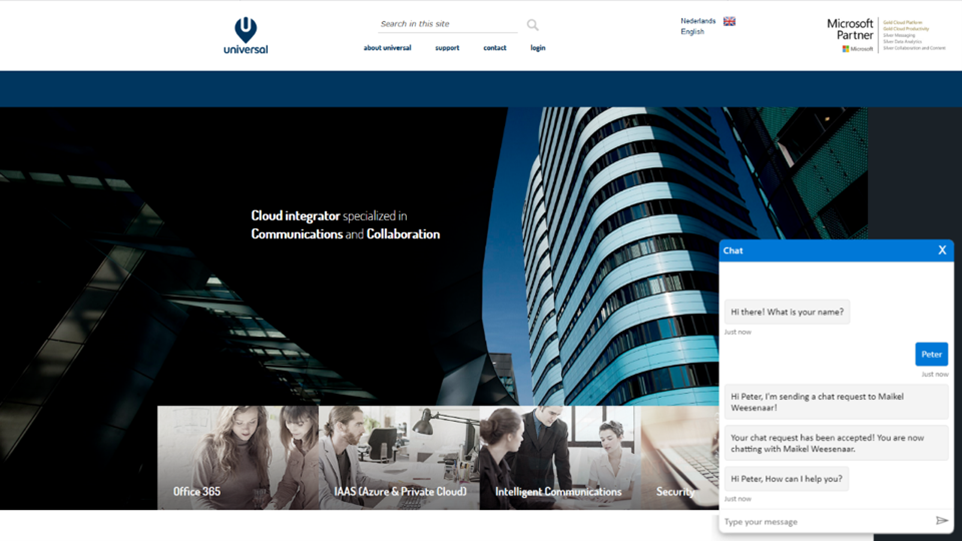
uWebChat chat window
Power Pages integration
uWebChat can also be integrated into Microsoft Power Pages sites. Custom Power Pages domains are supported (e.g. xxxxxx.powerappsportals.com).
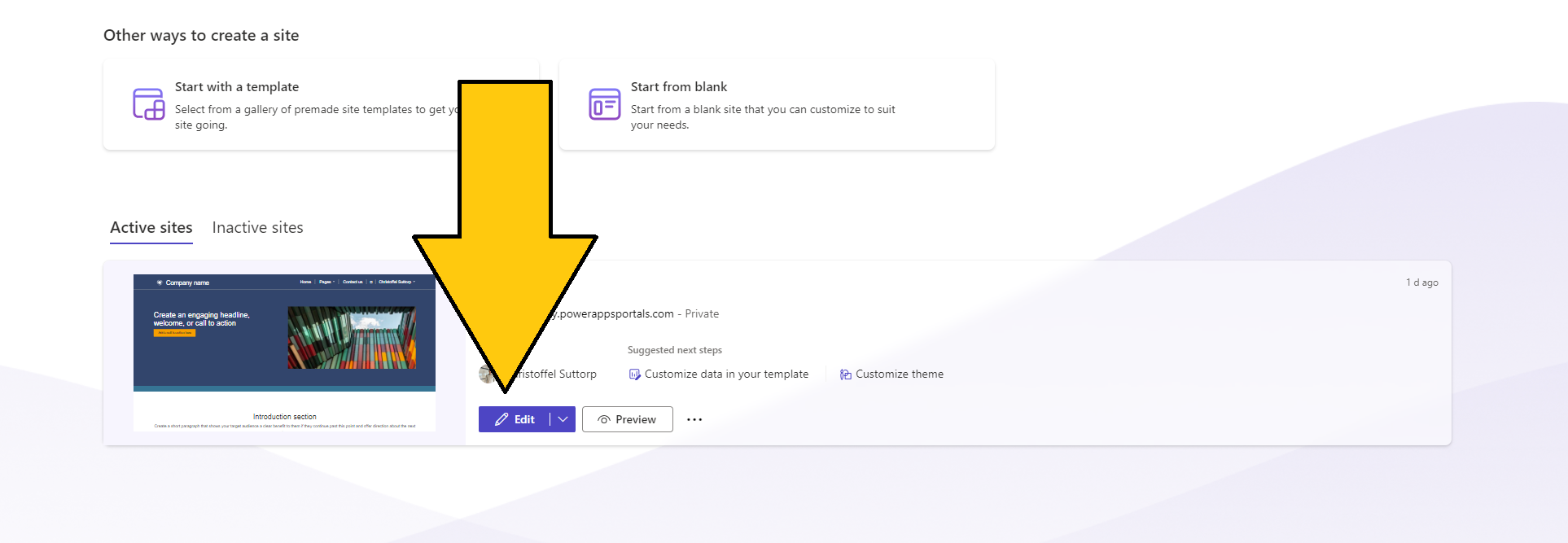
Power Pages step 1
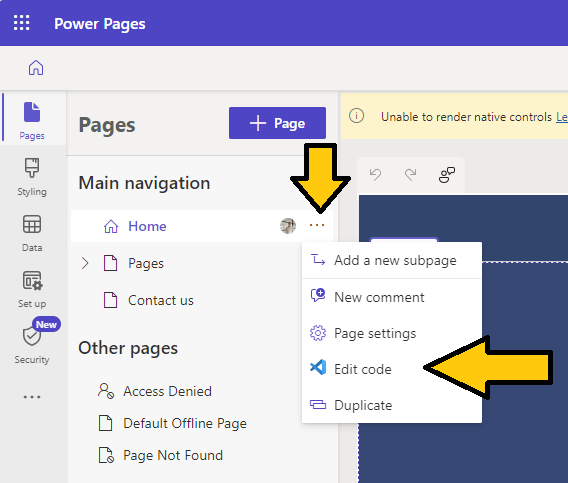
Power Pages step 2
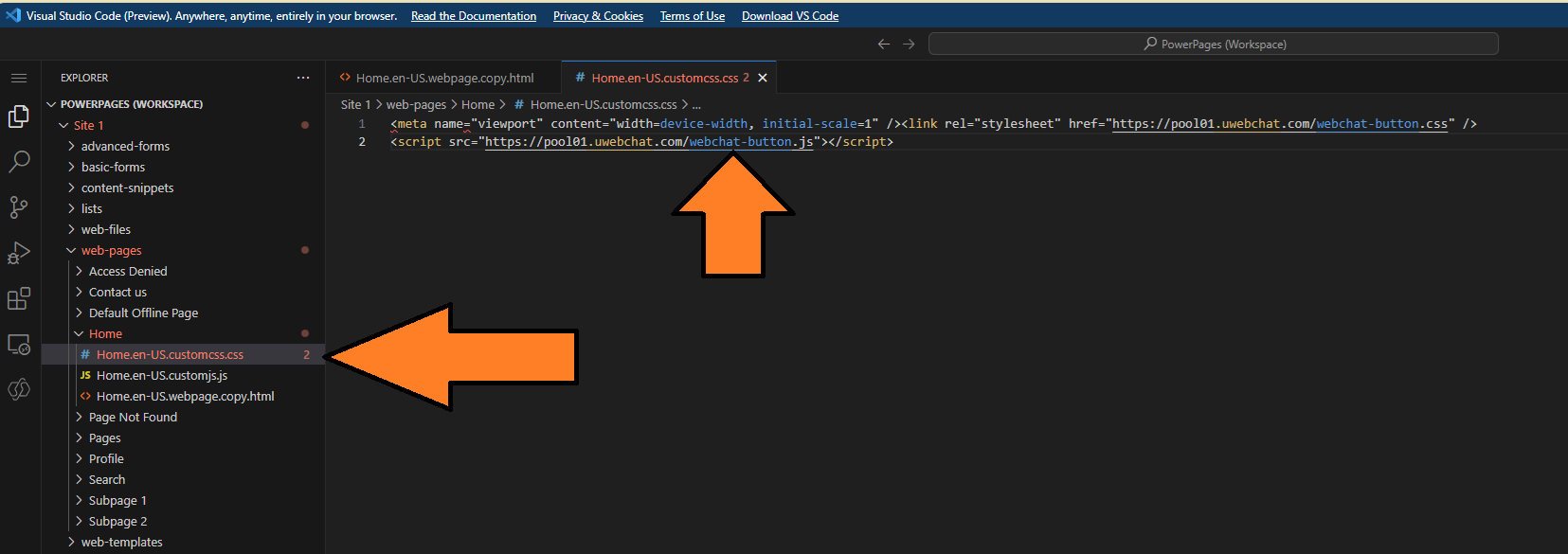
Power Pages step 3
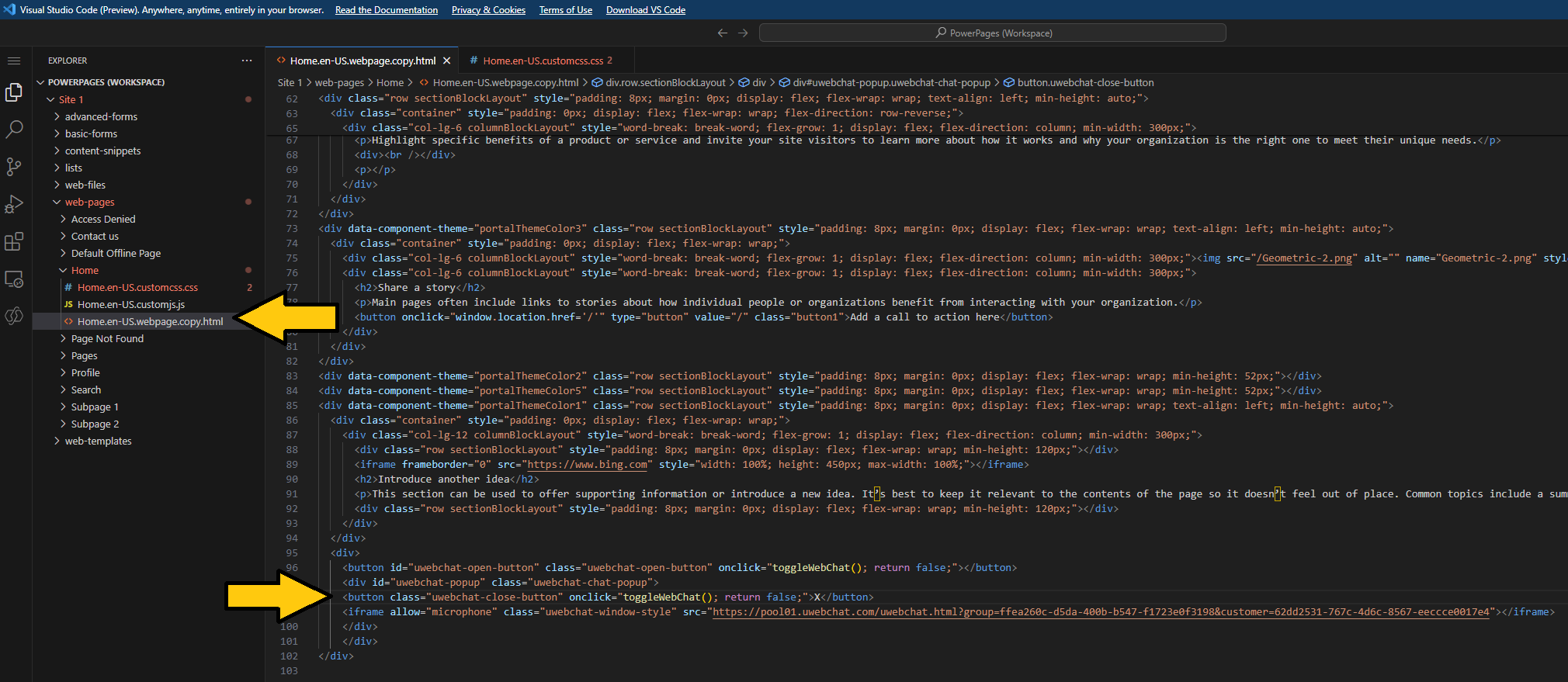
Power Pages step 4
The default chat button appears in the bottom right corner. You can customize it using CSS.
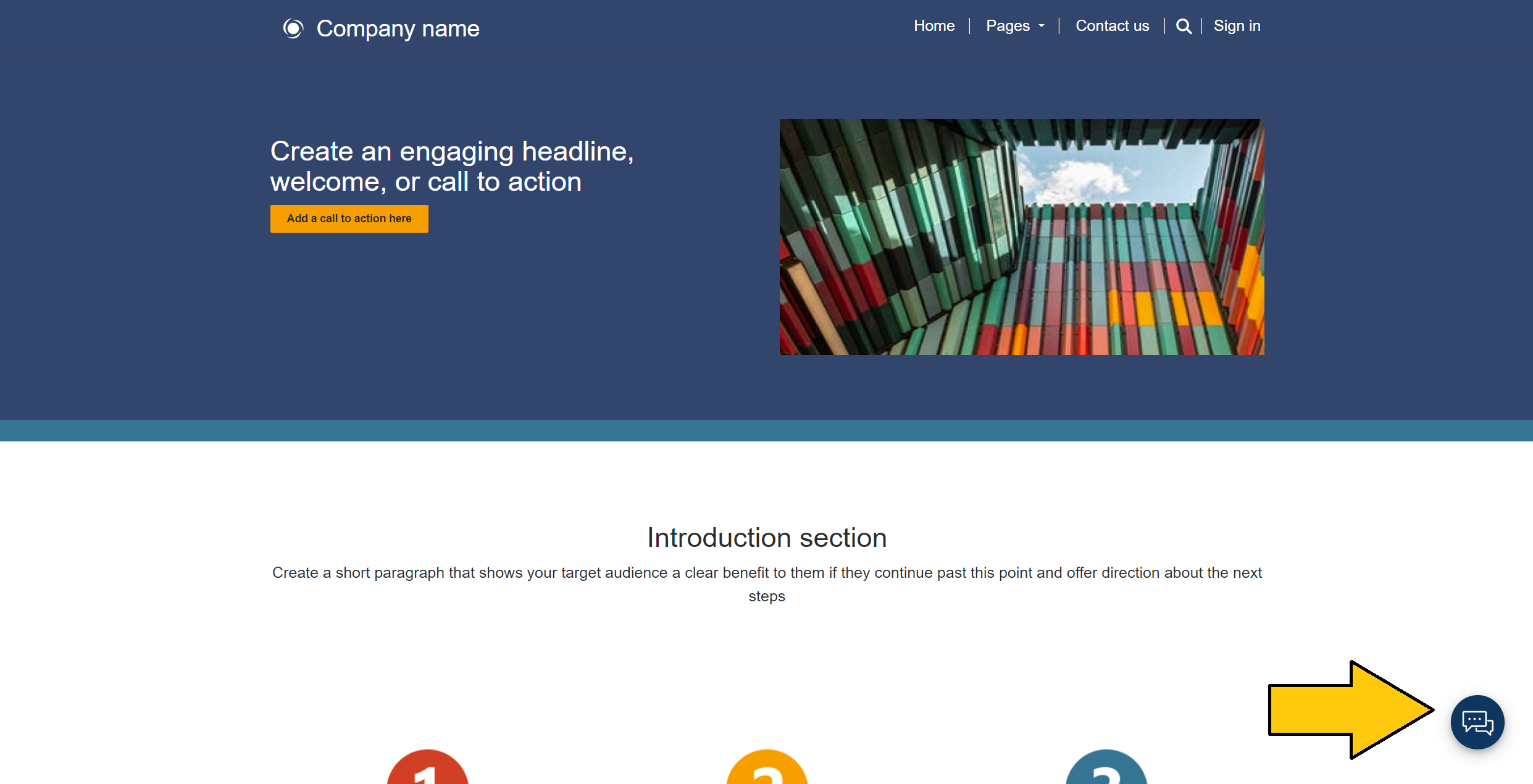
Power Pages result
Caution: Power Pages designer and co-pilot page designer could suggest changes that impact the uWebChat integration temporarily. Always test after making changes.
WordPress plugin
uWebChat also offers a WordPress plugin for easy integration. Install the plugin, enter your Customer ID and Group ID (obtained via the debug and show groups commands), and enable content from uWebChat.com.
More information: uWebChat WordPress plugin
Chat With Us
Get instant help from our support team
News & Insights
The new uWebChat Voice portal is live
2026-03-31
Laptop prices are rising fast: order now before it's too late
2026-03-16
Microsoft 365 E7: the new all-in-one suite for AI and productivity
2026-03-12
Related Articles
Need More Help?
Can't find what you're looking for? Our support team is ready to assist.
Submit a Support Ticket